
Projects, members and roles
An organisation project has members, each with a role. The role decides what they can do with the project’s datasets. This page is for managers who set that up.
A project on this computer only has no members. Its Members page says “This project is on this computer only”. To work with others, share it into an organisation first. See Organisations, the hub and sync.
Two kinds of role
Section titled “Two kinds of role”Organisation roles are set in the hub web app, on the organisation’s People page:
- Owner and Admin manage the organisation’s people and settings. They are managers of every project, whether or not they are members of it. Only owners and admins can create organisation projects.
- Member is everyone else. The hub web app shows this role as “User”.
Project roles are set per project, in the desktop app or the hub web app:
| Role | What they can do |
|---|---|
| Manager | Everything a labeller can, and edits the project, its members, label sets and models. Publishes versions. |
| Labeller | Answers events and draws boxes. Publishes too, if the project allows it. |
| Viewer | Browses datasets and listens. Changes nothing. |
flowchart TB
  OA["Organisation owner or admin"] -->|"in every project"| M
  subgraph P["Project roles"]
    M["Manager<br/>view, label, publish"]
    L["Labeller<br/>view, label<br/>(publish if the project allows)"]
    V["Viewer<br/>view"]
  end
  E["Everyone in the organisation<br/>(optional)"] -.->|"as viewer or labeller"| P
  P --> D["Each dataset<br/>can narrow access, never widen it"]
A dataset can only take access away. It never gives anyone more than their project role allows.
The Members page
Section titled “The Members page”Open the project and choose Members in the sidebar.
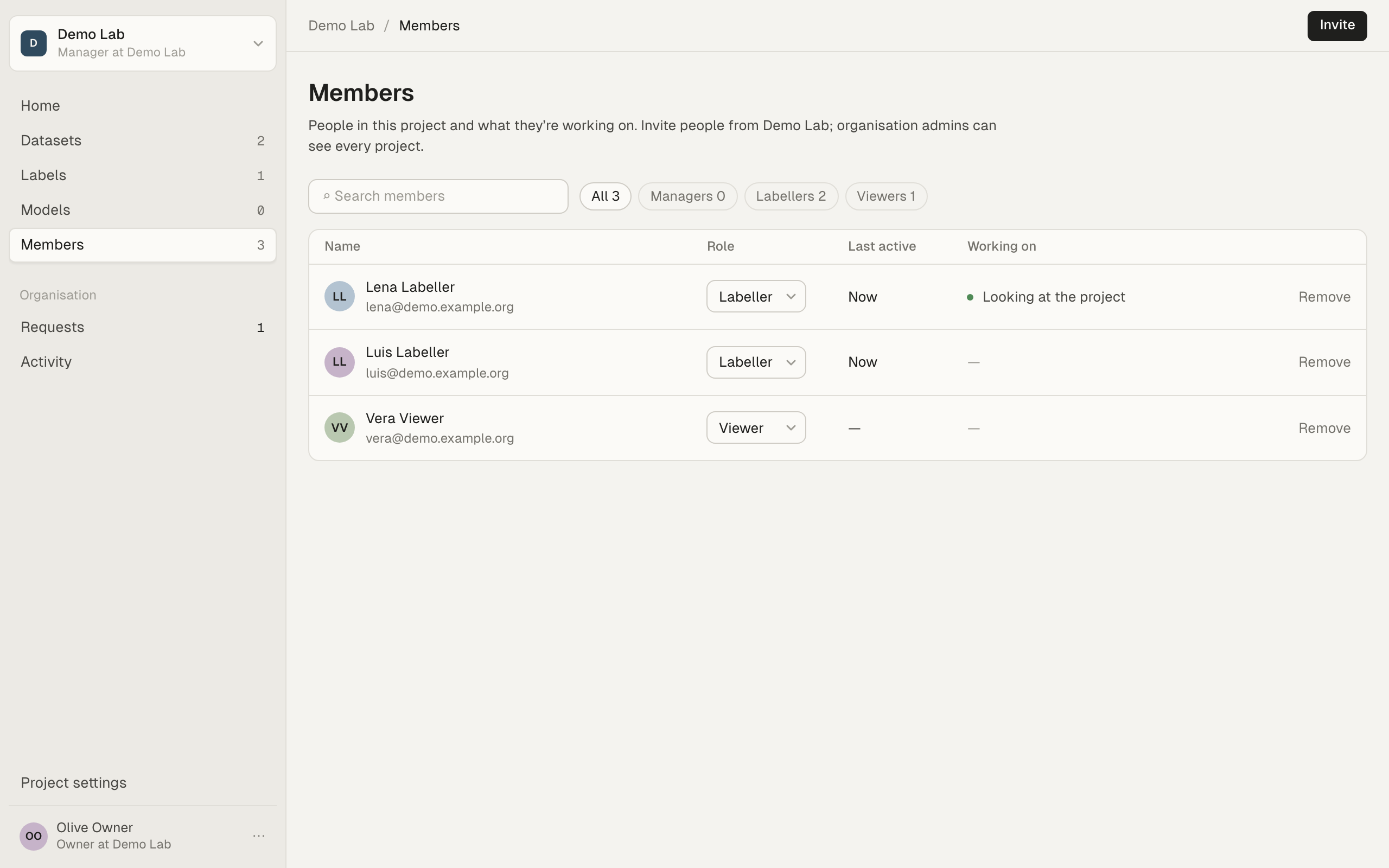
For each person you see their role, when they were last active in the project, what they are Working on right now, and what they are Assigned to. “Org admin” marks an organisation owner or admin. If someone sees only some of the datasets, their email is followed by how many they see.
As a manager you can:
- Change a role with the select in the Role column.
- Choose Change to set which datasets they see and what they are assigned to. See Assignments.
- Choose Remove to take them out of the project. Everything they answered or drew stays. Their assignments end.
People who aren’t managers see the same table without the controls. You can’t change your own role.
Making someone a viewer ends their assignments, because viewers can’t label.
Invite people
Section titled “Invite people”You invite people who are already in the organisation. To add someone new to the organisation, an owner or admin invites them first from People > Invite people in the hub web app.
- On Members, choose Invite. You need to be online.
- Under People, type a name or email and pick each person. Each suggestion says what they do in other projects, for example “Labeller in Historic archive”.
- Choose a Role: Labeller, Viewer or Manager.
- Under Datasets they can see, choose All datasets in the project (new ones too) or Only some, and tick the datasets.
- Choose the button at the bottom, for example Add Aoife as Labeller.
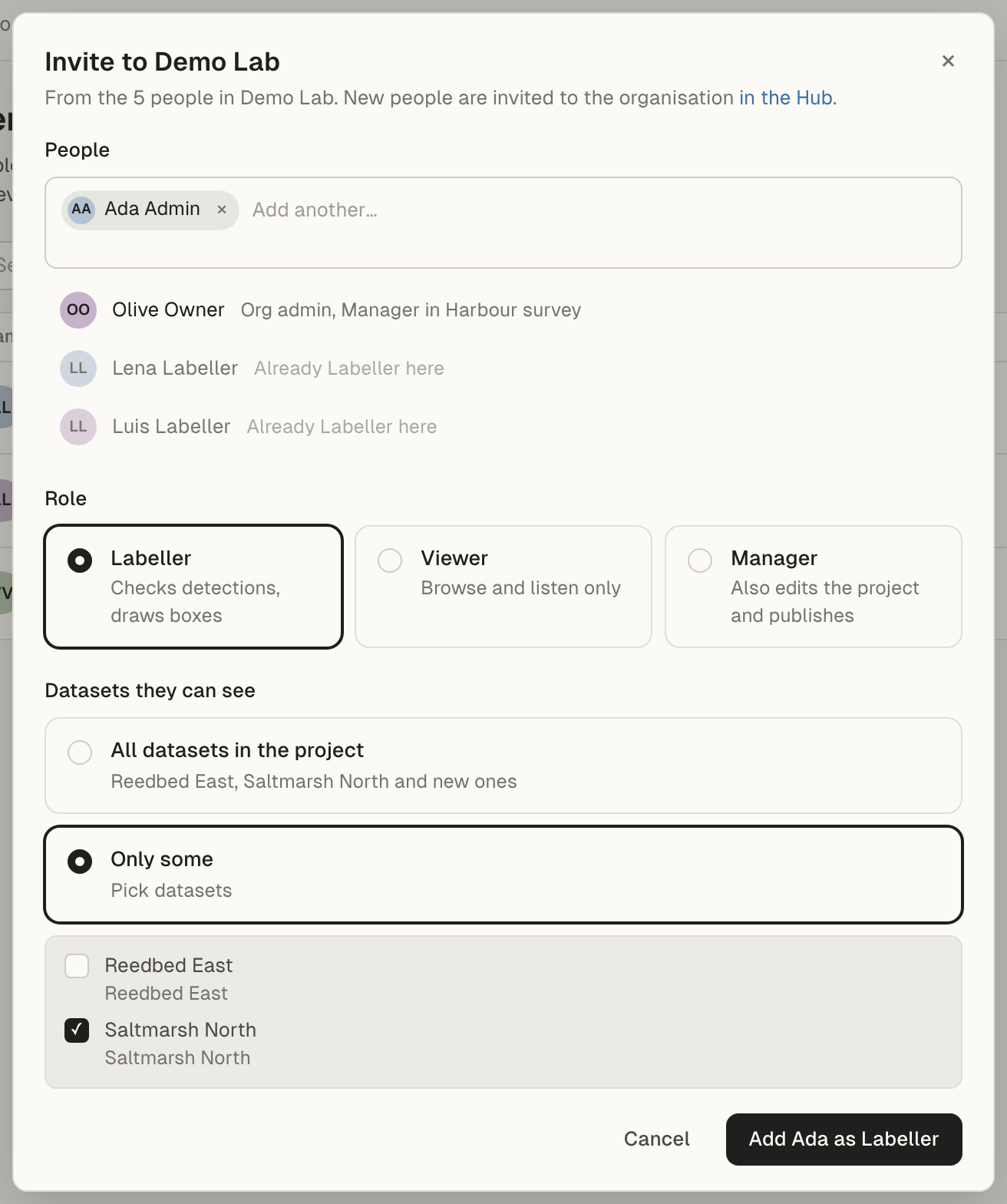
Managers always see every dataset, so the dataset choice is hidden when you pick Manager.
To change which datasets someone sees later, choose Change next to them on Members.
Everyone in the organisation
Section titled “Everyone in the organisation”A project can also let everyone in the organisation in without an invitation. In Project settings, under What each role can do, the Everyone in organisation row has three choices:
- Only people invited: only members and the organisation’s owners and admins see the project.
- Everyone can view: everyone in the organisation is a viewer here.
- Everyone can label: everyone in the organisation is a labeller here.
An invited member’s own role replaces this, whether it is higher or lower. If you remove someone who also gets in through this setting, they keep that role.
What each role can do
Section titled “What each role can do”Open Project settings from the sidebar, or press Cmd+, (Ctrl+, on Windows and Linux).
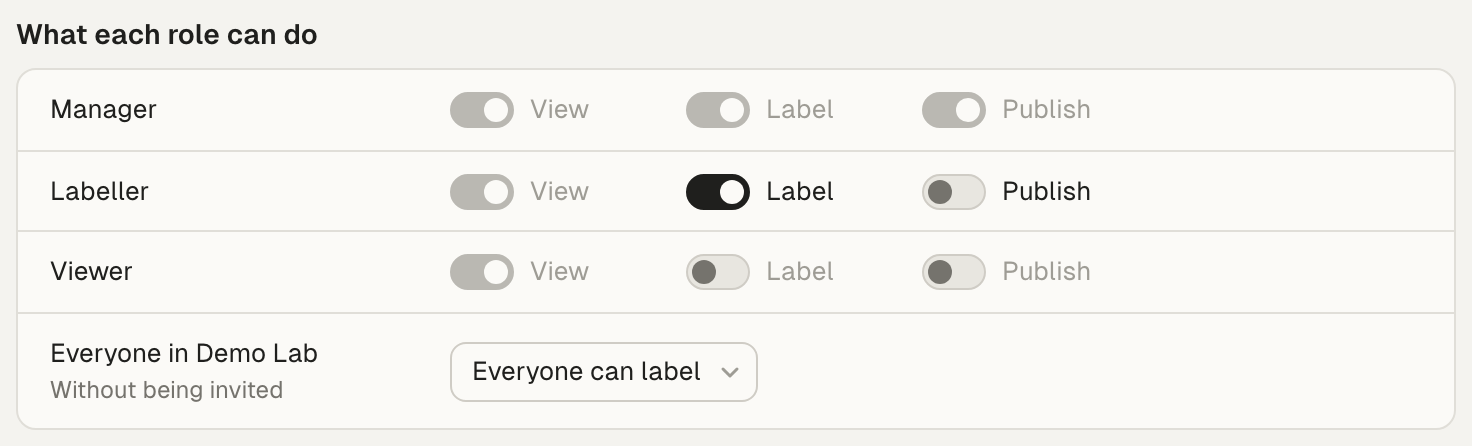
Each role has View, Label and Publish switches. Only the labeller’s Label and Publish can change. Managers always have all three, and viewers only View.
When you change a switch or the Everyone row, a note below says what it means and who it affects before you save, for example “Declan and Aoife will see a Publish button on each dataset.” Choose Save changes to apply it.
Publishing freezes the answers into a numbered version that other projects can use. It can’t be undone. Think before you let labellers publish. See Published versions and exports.
Narrow a dataset
Section titled “Narrow a dataset”New datasets are visible to every member, as their role allows. To limit a single dataset to fewer people, a manager uses the hub web app:
- Open the project in the hub web app and go to its Datasets tab.
- Choose Change access next to the dataset.
- Choose Narrower than the project.
- Set what Project members without a cap may do, and add Caps for named people where one person needs a different limit. “Can’t see it” hides the dataset from them.
- Choose Save.
Narrowing never affects managers. In the desktop app, the project’s Datasets page shows who can see each dataset.
Archive and restore a project
Section titled “Archive and restore a project”When a project’s work is finished, a manager (or an organisation owner or admin) can archive it. Nothing is deleted.
- Open Project settings.
- Next to Status, choose Archive….
- Read what happens. If some work isn’t in a published version yet, the dialog says so and offers to publish it first.
- Add an optional reason. Members see it.
- Choose Archive project.
When a project is archived:
- Labelling stops. No one can answer events, draw boxes or publish.
- Members keep access. They can still open datasets, listen and download published versions.
- Other projects are unaffected. Projects that use its published versions keep them.
- Work made offline before the archive is kept. If someone labelled offline and their changes reach the hub after the project was archived, the hub doesn’t take them. Their computer keeps them, as blocked changes or refused changes, and says why. Nothing is lost: once you restore the project, blocked changes go at that person’s next sync, and refused ones can be sent again from Refused changes.
To restore it, a manager opens Project settings and chooses Restore next to Status.
Delete an organisation project
Section titled “Delete an organisation project”You can only delete an organisation project that has nothing in it yet, for example one created by mistake. Once it has datasets, archive it instead.
If you picked a Starting label set when you created it, the hub won’t delete it, even if nobody has used it. The same goes once anyone has changed its label sets, models or settings. Delete… stays available, but you get an error. Archive it instead.
A project’s managers and the organisation’s owners and admins can delete it. You need to be online.
- Open Project settings and go to Danger zone.
- Next to Delete project, choose Delete….
- Type the project’s name and choose Delete project.
This deletes the project and its member list for everyone in the organisation. It can’t be undone. On other members’ computers, the project stays in the list after their app next syncs, but it can’t be opened. The project switcher greys it out with “No longer shared with you”, and its card on Home is greyed out too.
Delete… is greyed out while the project has any datasets. The hub also refuses to delete a project that started from a label set, or once anyone has changed its label sets, models or settings. Archive it instead: everything stays readable.
There is no Remove from this computer for an organisation project. That is only for personal projects. See Remove or delete a personal project.
Troubleshooting
Section titled “Troubleshooting”Invite is greyed out. Only the project’s managers invite people, and inviting needs the hub. Check that you are online.
Someone can’t see a dataset. Choose Change next to them on Members and check Datasets they can see. Also check whether the dataset is narrowed in the hub web app.
Delete… is greyed out. The project has datasets, so it can’t be deleted. Archive it instead.
Deleting fails with “Only an empty project can be deleted; archive it instead.” The dialog shows this under the name field. The project isn’t empty, even with no datasets. It started from a label set, or someone changed its label sets, models or settings. Archive it instead.
“Only people invited” took access away from people. That setting removes everyone who got in only through the Everyone row. The note before saving lists them.