
Assignments
An assignment gives one person one part of one dataset. It puts that part first for them in the labeller and keeps it for them while they are labelling. Managers make assignments. Labellers and managers can be given them. Viewers can’t, because they don’t label.
Assignments exist only in organisation projects. A project on this computer only has no members to assign work to.
Kinds of assignment
Section titled “Kinds of assignment”| Kind | In Which part | What it covers |
|---|---|---|
| Whole dataset | The whole dataset | Everything in the dataset. It says who is working on it but reserves nothing. |
| Queue of events | Detections to check | The events that match a filter: Show (Unchecked, Unsure, Disputed or All), an Order, and optionally a lowest score. |
| Range of recordings | A range of recordings | Recordings from to to, counted in the dataset’s recordings list, and their events. |
A queue suits checking a model’s output. A range suits finding what the model missed in Recording.
How an assignment flows
Section titled “How an assignment flows”flowchart LR M["Manager:<br/>Members > Change"] --> S["Assignment syncs<br/>with the project"] S --> St["Labeller's start screen:<br/>Assigned to you"] St --> Se["Session runs inside<br/>the assignment"] Se --> Pr["Progress on the start screen<br/>and the project home"] Pr -.->|"manager changes or ends it"| M
Give someone work
Section titled “Give someone work”- Open the project and choose Members in the sidebar.
- Next to the person, choose Change.
- Under Assigned to, choose + Add an assignment.
- Pick the dataset, then the part in Which part:
- Detections to check: set Show, Order and, if you like, score ≥ a value between 0 and 1. Leave it as “any” for every score.
- A range of recordings: type the first and last recording number. The dialog shows how many recordings the dataset has.
- Add more rows if you want to give them several parts.
- Choose Save.
The dialog saves the person’s assignments as a whole. Rows you left as they were keep going. Rows you removed end. New rows begin.
If you limit someone to Only some datasets in the same dialog, you can’t assign them a dataset they don’t see. The row says so.
What the labeller sees
Section titled “What the labeller sees”When the person opens the labeller on that dataset, the start screen lists their assignments under Assigned to you. Each one shows its progress, for example “12 of 40 detections checked” or “3 of 20 recordings with boxes”. Below them is The whole dataset: their assigned items come first, then everything else.
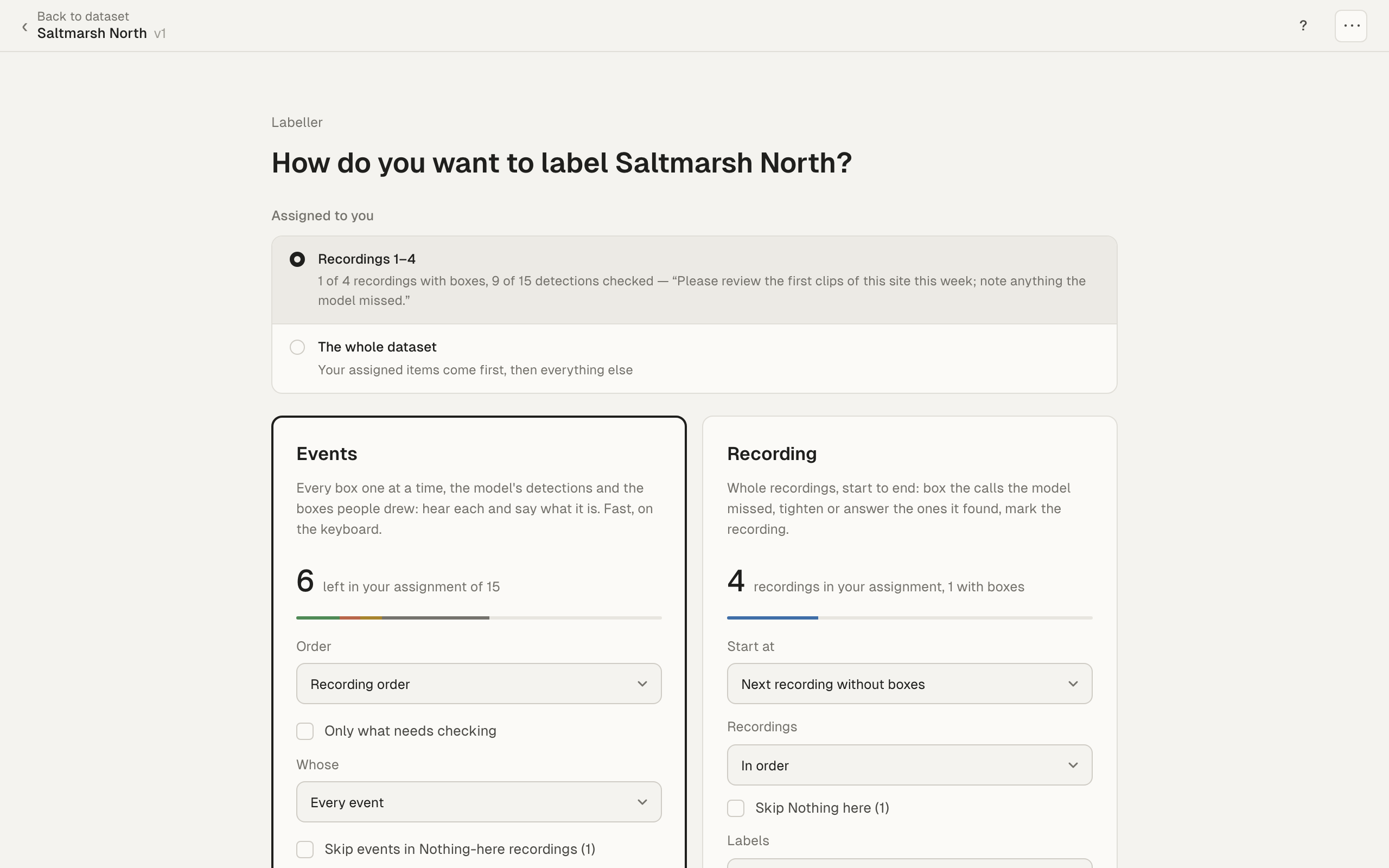
The first assignment is chosen until they pick another. The count on the Events card shows what is left in the chosen assignment.
A queue assignment sets Order and Show. The Order select and Only what needs checking are greyed out, with the tip “Set by your assignment”. The session runs in the order the manager chose. If the manager changes it later, the labeller picks it up the next time the session opens.
During the session, the position at the top counts within the assignment, for example “2 / 10”, and its tooltip starts “Your assignment”.
The project home also shows the person’s own work under Needs attention, for example “8 detections assigned to you not yet checked”, with Start checking. Starting from there opens their assignment.
Without choosing an assignment
Section titled “Without choosing an assignment”If a labeller picks The whole dataset, or has no assignment, their own queue and range items still come first, in the session’s order. The rest of the dataset follows.
When someone else is assigned
Section titled “When someone else is assigned”An event or recording in someone else’s queue or range is skipped for you while that person is labelling the dataset. When they stop, or their claim lapses after about 10 minutes, anyone can take those items. Work never waits for someone who isn’t there.
Offline there are no claims, so nothing is skipped. If two people answer the same event, both answers are kept.
Change or end an assignment
Section titled “Change or end an assignment”Open Members, choose Change next to the person, edit or remove the row, and choose Save.
Assignments also end when:
- you make the person a viewer;
- you remove them from the project;
- they can no longer see the dataset, or leave the organisation.
A change made in the hub web app takes effect the next time a manager opens the project home or Members in the desktop app. Everything they answered or drew stays.
Troubleshooting
Section titled “Troubleshooting”“Viewers can’t label”. Make the person a Labeller first, then assign them work.
The labeller doesn’t see their assignment. Their app needs to sync the project. Check that both of you are online. An assignment that was ended or moved to someone else disappears from their start screen, and the session runs over the whole dataset.
“The lowest score is between 0 and 1”. Scores are fractions, so type 0.8, not 80.