
Keyboard shortcuts
In the labeller, press ? (or the ? button in the top bar) to see the keys for the screen you are on. In Recording, the same overlay starts with tips on how the screen works.
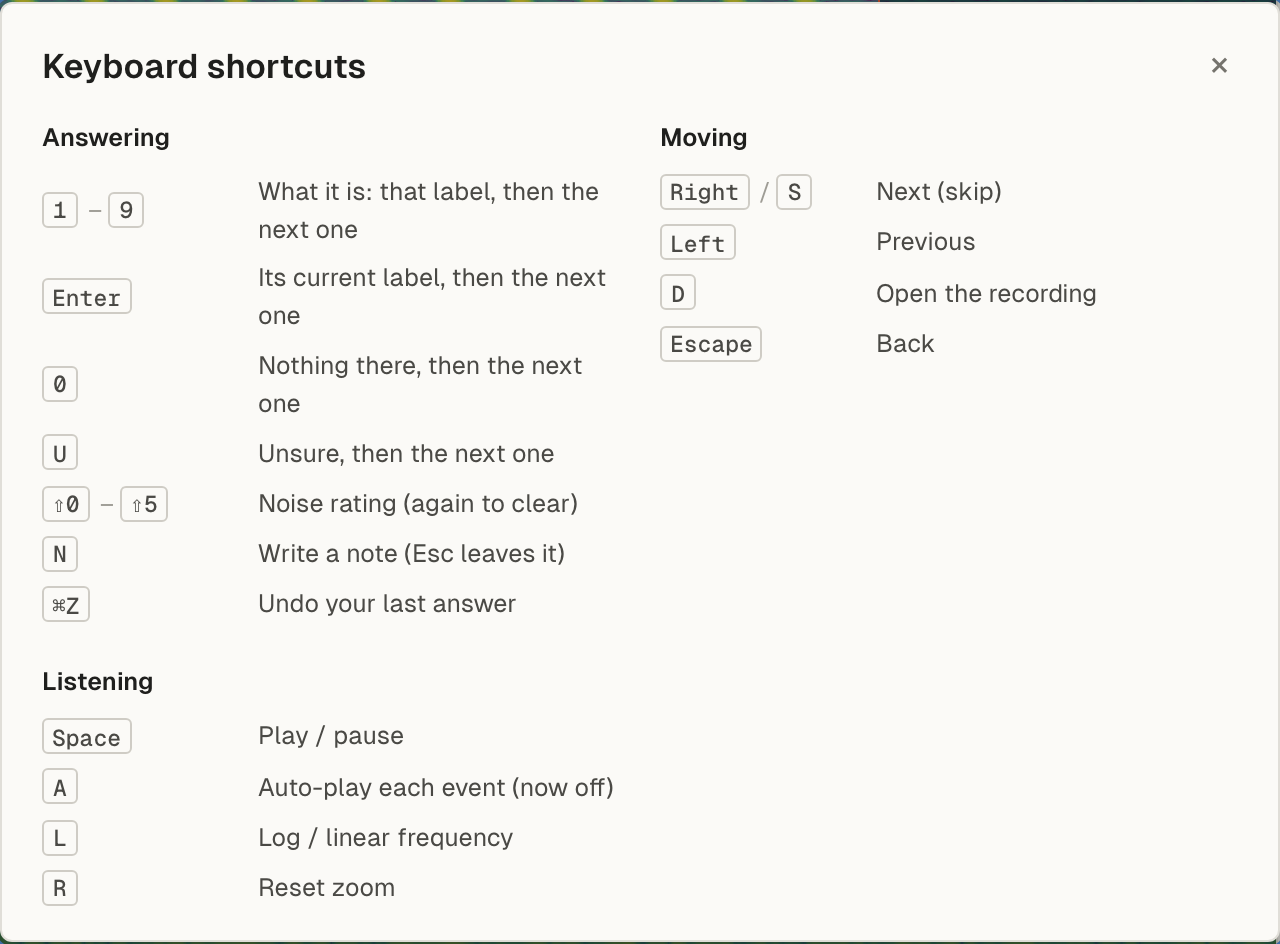
On a Mac, ⌘ is the command key. On Windows and Linux, use Ctrl instead. The app shows each key the way your computer names it.
Shortcuts don’t fire while you are typing in a field, or while a dialog is open.
Anywhere in the app
Section titled “Anywhere in the app”Alt+← and Alt+→ go back and forward, also in the labeller. The mouse’s back and forward buttons do the same. They don’t fire while you are typing in a field.
Everywhere in a project
Section titled “Everywhere in a project”These work on the project’s pages, not in the labeller.
| Key | Does |
|---|---|
| ⌘1 | Datasets |
| ⌘2 | Labels |
| ⌘3 | Models |
| ⌘, | Project settings |
Datasets
Section titled “Datasets”| Key | Does |
|---|---|
| / | Search the datasets |
| Esc | Clear the search |
| Enter | Open the only match |
A dataset
Section titled “A dataset”| Key | Does |
|---|---|
| L | Open the labeller |
| ⌘A | On the Events tab: select the page |
| Esc | On the Events tab: clear the selection |
The labeller’s start screen
Section titled “The labeller’s start screen”| Key | Does |
|---|---|
| C | Choose Events |
| D | Choose Recording |
| Enter | Start |
| Esc | Back |
Events
Section titled “Events”See Events: one event at a time.
Answering
| Key | Does |
|---|---|
| 1 to 9 | That label, then the next event |
| Enter | The event’s current label, then the next event |
| 0 | Nothing there, then the next event |
| U | Unsure, then the next event |
| Shift+0 to Shift+5 | Noise rating. The same again clears it. |
| N | Write a note. Esc leaves it. |
| ⌘Z | Undo your last answer |
Moving
| Key | Does |
|---|---|
| → or S | Next event, without answering |
| ← | Previous event |
| D | Open the recording in Recording |
| Esc | Back |
Listening
| Key | Does |
|---|---|
| Space | Play or pause |
| A | Auto-play each event on or off |
| L | Log or linear frequency |
| R | Reset the zoom |
Recording
Section titled “Recording”See Recording: whole recordings. Some keys mean something different here than in Events. For example, ← and → move by recording, not by event.
Recordings
| Key | Does |
|---|---|
| ← and → (or S) | Previous and next recording |
| Space | Play or pause the view |
| A | Auto-play each recording on or off |
| C | Go to Events |
| I | Mark the recording Of interest. Again to withdraw. |
| 0 | Mark the recording Nothing here. Again to withdraw. |
| Shift+I | Your mark’s note |
The mark keys work when nothing is selected.
Boxes
| Key | Does |
|---|---|
| 1 to 9 | With a box selected: its label. With nothing selected: the label for new boxes. |
| 1 to 9, 0, U, Enter | With a detection selected: your answer (a label, Nothing, Unsure, or its current label) |
| Shift+0 to Shift+5 | How noisy the selected box or detection is |
| N | Note on the selected box or detection |
| P | Play only the selected box’s band |
| [ and ] | Previous and next box |
| Delete | Delete the selected box |
| ⌘Z | Undo your last box change on this recording |
| Esc | Deselect, then leave |
View
| Key | Does |
|---|---|
| = and - | Zoom time in and out. Or scroll. Shift and scroll zooms frequency. |
| R | Reset the zoom |
| L | Log or linear frequency |
The overview strip (when focused): ← and → move the playhead 5 seconds, Home and End go to either end.
The recording picker and the event picker: ↑ and ↓ move, Enter opens, Esc closes.
A request
Section titled “A request”Requests exist only in organisation projects. See Ask a colleague.
A request about events uses the same answer keys as Events: 1 to 9, Enter, 0, U, Shift+0 to Shift+5, N. Then → or S and ← to move, Space to play, L, R, ⌘Z to undo an answer to this request, ?, and Esc to go back.
A request about recordings opens in Recording with its keys, with two changes: in a request you were asked by name, 0 means No calls in this recording (in any other request it marks the recording Nothing here as usual), and C does nothing, because the view can’t switch to Events.