
Ask a colleague
A request asks someone to look at an event, a recording, or a batch of them, and answer. You can ask one person or everyone who labels the dataset. Their answers and replies come back to you.
Requests exist only in organisation projects. In a project on this computer only, the ask buttons don’t appear. You also need to be able to label the dataset to ask.
Two kinds of request
Section titled “Two kinds of request”| Ask a person | Ask the dataset | |
|---|---|---|
| Goes to | one person who can label the dataset | everyone who can label it |
| Who sees it | the two of you | everyone who can read the dataset |
| How it is answered | their answers and boxes, plus replies | replies, from anyone who labels it |
| How it ends | they finish or decline, or you withdraw | you close it, or withdraw |
Answers in a request are ordinary answers. They are kept beside yours and never overwrite them. If they differ, the event shows as disputed until you agree or a manager settles it in Events. (If the dataset’s When reviewers disagree setting is The latest verdict counts, the latest answer stands instead.) Replies are text and never change anyone’s labels.
Ask from the labeller
Section titled “Ask from the labeller”Look for the speech-bubble button. Its tooltip says what it asks about.
- In Events, beside the event’s name: Ask a colleague about this event. If you answered some events Unsure in this session, the dialog also offers all of them as one batch, for example “All 11 Unsure from this session”.
- In the top bar of Events and Recording: Ask a colleague about this recording.
- In Recording, with a box or detection selected: Ask a colleague about this box or about this detection.
You can also ask from a dataset’s Recordings or Detections tab: select rows and choose Ask about these….
Send a request
Section titled “Send a request”- Choose the speech-bubble button.
- Under What to send, pick this one item or the batch.
- Under Who, pick Anyone who labels dataset, or search for a person. Each person shows what they have done in this dataset, for example “Checked 120 detections in Harbour survey”.
- Write a Message: what should they listen for?
- Choose Send to name or Ask everyone. Or press Cmd+Enter (Ctrl+Enter on Windows and Linux).
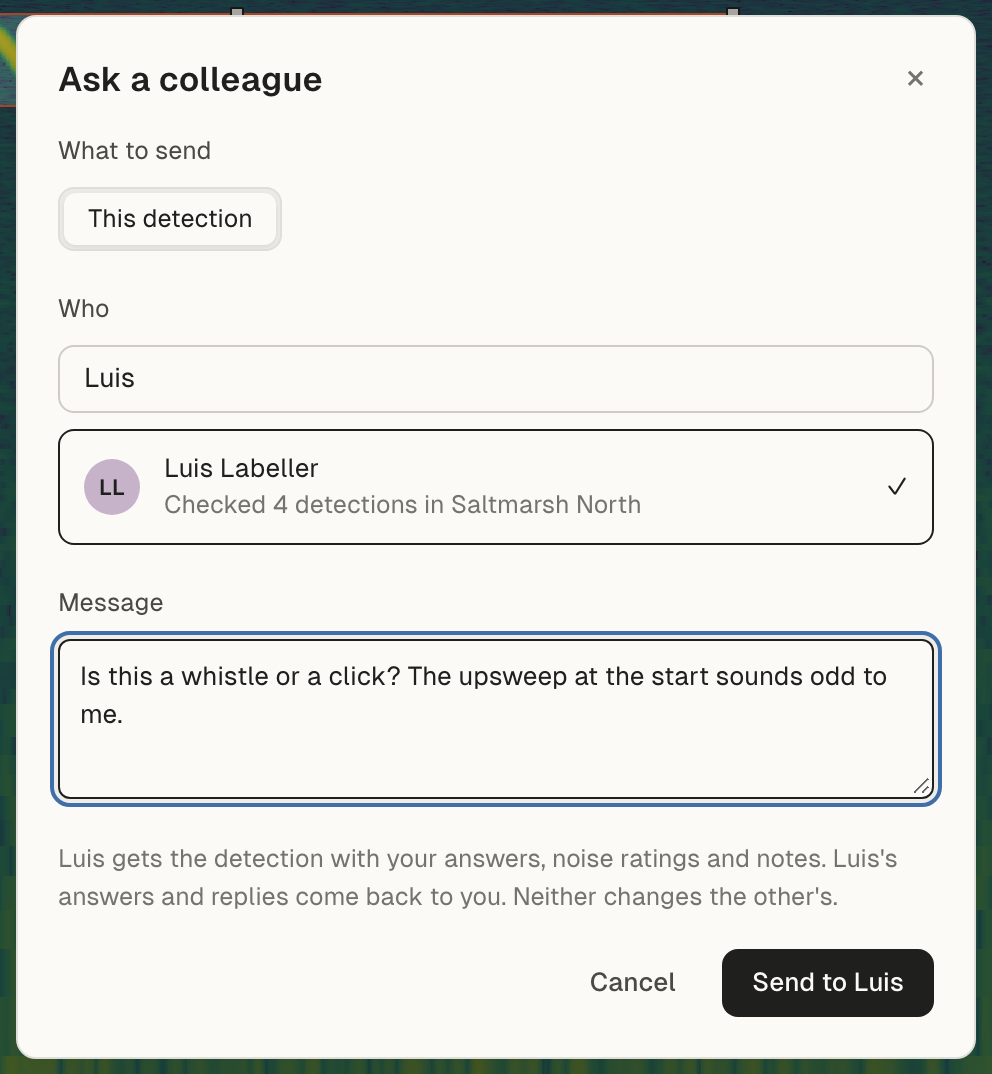
Your app sends your changes to the dataset first, so they get your answers, noise ratings and notes with the request. A request about boxes you drew waits until those boxes have reached the hub: the dialog says “Waiting for 3 boxes to reach the hub; the request goes out then”, and it goes by itself once they have. A request can hold up to 50,000 items. A large batch shows “Sending” until all of it has reached the hub.
If your first Send reached the hub but the answer didn’t come back (a dropped connection), the dialog keeps the fields as they were. Sending again sends the same request, never a second one. If you changed something before trying again, it says “This was already sent (to Maria).” with Keep it or Withdraw it. To ask something else, choose Send a different request.
The Requests page
Section titled “The Requests page”Choose Requests in the sidebar, under Organisation. The number beside it is how many requests are waiting for you.
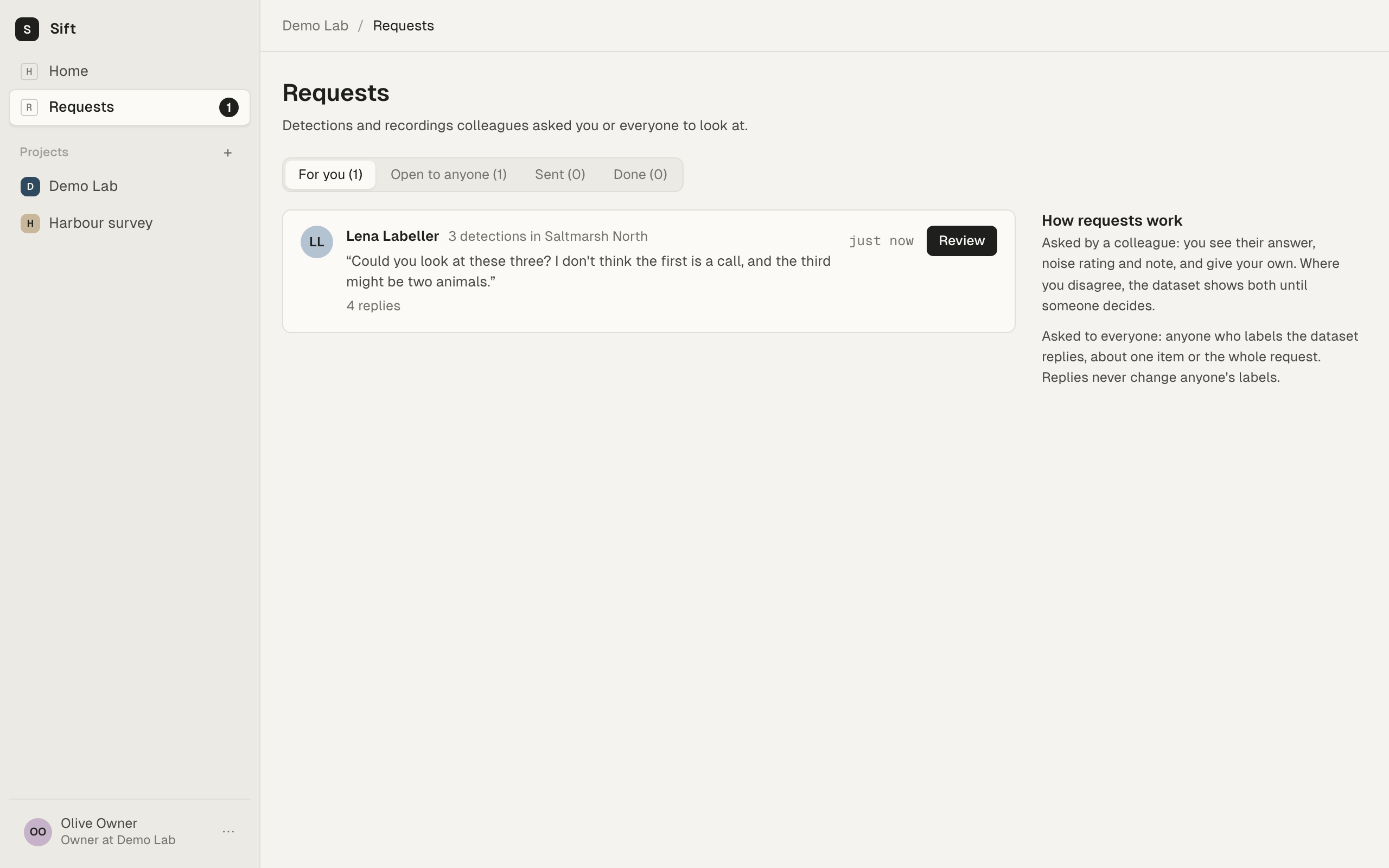
- For you: requests people sent to you.
- Open to anyone: requests to a whole dataset you can read. Anyone who labels it can reply.
- Sent: your open requests.
- Done: requests that were finished, declined, closed or withdrawn, and ones you replied in.
Beside the list, You asked shows your open requests with their progress, and how many answers differ from yours. Their progress counts the answers they have given, wherever they gave them (in the request, or in an ordinary Events session), once those answers reach the hub. It never goes down.
Not sent yet, on the Sent tab, lists what you did that hasn’t reached the hub: “Waiting to send” while you’re offline, “Waiting for its boxes to reach the hub”, or “Not sent: …” with the reason. A large request whose sending stopped part way, for example because the app was closed, shows “Sending stopped at 5,000 of 12,000” with Resume sending and Discard. Sift also resumes it by itself at the next sync. Replies, edits and deletions waiting to go are listed there too, with their text. Every entry has Discard; one the hub refused has Try again. Discarding a request that may have reached the hub withdraws it there; if the hub can’t be reached just then, Sift says so and withdraws it as soon as it can.
Answer a request
Section titled “Answer a request”- On For you, choose Review (or Continue if you started). For a request to a dataset, choose Look.
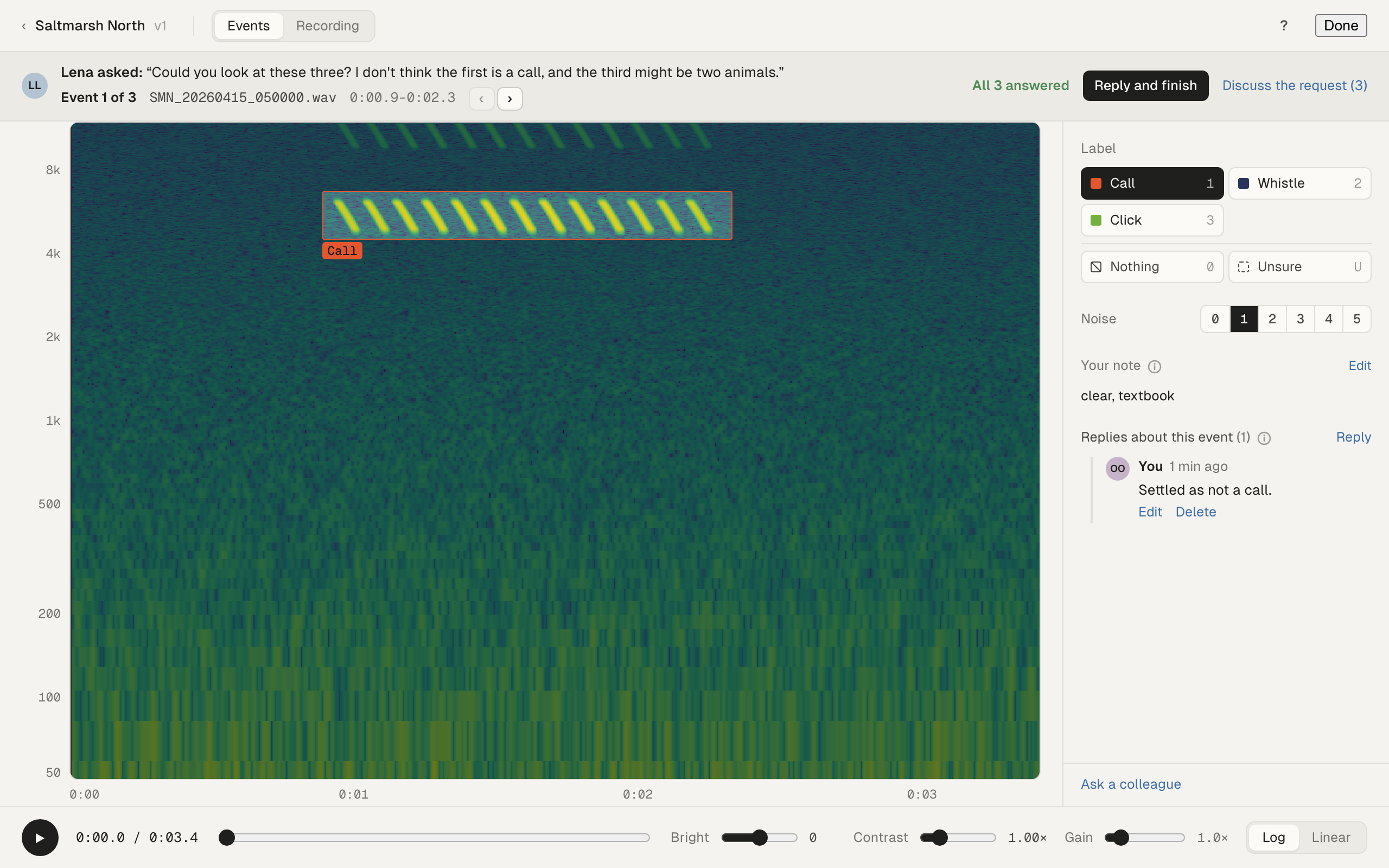
- The request opens full screen. A bar at the top pins the question, for example “Maria asked: Is this a whistle or a click?”, and where you are, for example “3 / 11”.
- For each event, the panel on the right holds your answer, noise rating and note, and Replies about this event. The other person’s answer isn’t shown there. The event’s box shows its current label, or Disputed while it is in dispute.
- Answer as you would in Events: a label (1–9), Nothing (0) or Unsure (U). Add a noise rating or a note if you like. Move with ← and →.
- When you have answered them all, choose Reply and finish in the pinned bar. Add a reply if you want, and choose Reply and finish again.
Answers are kept side by side: yours never overwrites theirs. When you open a request you sent about events, the pinned bar counts how many of their answers differ from yours, for example “11 of 11 answered, 2 differ from yours”. An answer differs when you both answered and gave a different label, Nothing or Unsure. Under the default setting, those events are usually disputed until you agree or a manager settles them in Events. See Disputes.
You can finish before you have answered everything. What you answered goes back, and the rest stay as they are. If you haven’t answered any, the reply dialog also offers Decline.
A request about recordings opens Recording on just those recordings, with the same pinned bar. The asker’s boxes show dashed beside yours. A recording counts as answered when you draw a box on it, change one of its boxes, or press 0 for “No calls in this recording”.
Replies
Section titled “Replies”Under the answer panel you can reply about this event or box, or open Replies about the whole request. Everyone who sees the request reads the replies. You can edit or delete your own replies while the request is open.
A reply you are writing is kept on this computer until you send or cancel it, even if you close the request or quit the app.
Some events may not be on your computer yet. Each says why:
- Not here yet: it comes with your next sync.
- Waiting for Maria to sync (last seen 2 h ago): Maria drew it but her app hasn’t sent it to the hub yet. It arrives after she next syncs.
- The hub refused this box: Maria’s change was refused, so it never arrives. Ask her about it.
Close or withdraw
Section titled “Close or withdraw”- Close request (a request to a dataset): you have your answer. Replies stay with the request.
- Withdraw (either kind): you no longer need it. Anything already answered stays in the dataset.
Both are in the pinned bar of the request, and in the ⋯ menu next to it on the Requests page.
Request lifecycle
Section titled “Request lifecycle”stateDiagram-v2
direction LR
state "Ask a person" as person {
state "Sending" as pSending
state "Open" as pOpen
state "Done" as pDone
state "Declined" as pDeclined
state "Withdrawn" as pWithdrawn
[*] --> pSending: a large batch
[*] --> pOpen
pSending --> pOpen: all items sent
pOpen --> pDone: they choose Reply and finish
pOpen --> pDeclined: they decline
pOpen --> pWithdrawn: you withdraw
}
state "Ask the dataset" as dataset {
state "Sending" as dSending
state "Open" as dOpen
state "Done" as dDone
state "Withdrawn" as dWithdrawn
[*] --> dSending: a large batch
[*] --> dOpen
dSending --> dOpen: all items sent
dOpen --> dDone: you close it
dOpen --> dWithdrawn: you withdraw
}
Replies can arrive at any time while a request is open.
Working offline
Section titled “Working offline”Requests work offline too, except claims.
- Send, Reply, edits and deletes of your replies, Reply and finish, Decline, Close request and Withdraw are saved on this computer while the hub can’t be reached: “Saved on this computer — it will be sent when the hub can be reached.” They go, in the order you made them and each exactly once, at the next sync. Replies waiting to go show “Waiting to send” in the thread.
- If the hub refuses one of them later, for example because the request was closed meanwhile, it stays in Not sent yet with the reason until you discard it. Later actions about the same request wait behind it until then.
- An edit to a reply that you changed again on another computer in the meantime isn’t sent, so it can’t overwrite the newer text.
- When you open a request, it shows what is on your computer at once and says Updating… while the latest answers are fetched.
- Claims need a connection. Offline, the labeller says “Offline: items aren’t claimed, so someone else may check the same ones. Both answers are kept.” Your answers still sync later.
Notifications
Section titled “Notifications”When someone asks you something, asks a dataset you label, or replies to a request you sent or replied in, Sift tells you. While the app is in front it shows its own notice with Open. Otherwise you get your system’s notification. Several within a minute arrive as one.
Things that arrived while the app was closed are told when you start it. After more than a day away you get one notice instead, for example “While you were away: 2 new requests”.
To change this, open the account menu and choose Notifications…:
- Notify me about requests and replies turns them on or off.
- Only requests to me and replies to my requests leaves out requests to a whole dataset and replies in other people’s requests.
These settings are for this computer. Emails about requests are set in your account on the hub.
The hub web app shows the same Requests tabs, read only. Answering needs the audio, so it happens in the desktop app.
Troubleshooting
Section titled “Troubleshooting”No speech-bubble button. The project is on this computer only, or you can only view this dataset.
“Nobody else can label” dataset. Only people who can label the dataset can be asked. A manager can change roles on Members.
“Waiting for name to sync”. The other person’s app hasn’t sent the event to the hub yet. It arrives after they next open Sift with a connection.
A request stays in Not sent yet. Check your connection. “Waiting for its boxes to reach the hub” means your own changes haven’t synced: see the sync badge. “Not sent: …” says what the hub refused; discard it, or fix the cause and choose Resume sending.
“Nobody can hear this one right now”. The audio for that event isn’t on your computer. Skip it, or find the audio. See Missing audio and finding it again.