
Apply a model and map its output
Applying a model runs it over a dataset’s recordings on this computer. Every stretch of audio it scores high enough becomes an event, marked Not checked, for people to answer in the labeller.
Applying a model does not publish a version. The dataset’s published versions stay as they are until someone publishes. See Published versions and exports.
How a model run works
Section titled “How a model run works”flowchart TD
A[The dataset's recordings on this computer] --> B[Cut into fixed windows]
B --> C[Backbone and head score each window]
C --> D{Score at or above the threshold?}
D -- No --> E[Dropped, not stored]
D -- Yes --> F[An event with the label you mapped, Not checked]
F --> G[People answer it: a label, Nothing or Unsure]
A few things follow from this:
- The model gives one score per window. It is a single number between 0 and 1, not a choice between labels.
- You choose the label. Every event from a run carries the label you pick under Its output maps to. People’s answers can change it.
- Events are whole windows. Each event covers one window of time, 10.24 s unless the model says otherwise, across the full frequency range. Windows are not joined, so a call longer than one window shows up as several events.
- Only windows that pass are kept. Windows below the threshold are not stored.
Before you start
Section titled “Before you start”- The project has at least one model. See Register a model.
- The model’s files are on this computer.
- At least some of the dataset’s recordings are on this computer or on Google Drive. A recording on Drive is downloaded when its turn in the run comes. See Audio on this computer.
- Those recordings have a channel. Recordings that the channel map marks as needing a channel are left out of the run.
- You can label in this dataset. Viewers cannot apply models, and nobody can in an archived project.
Apply a model
Section titled “Apply a model”-
Open the apply sheet in one of these ways:
- On the dataset’s page, click Apply model in the header and pick the model under “Apply a project model”.
- On the Models page, click Apply on the model’s row.
- On the dataset’s Models tab, click a model under “In the project, not applied here”.
-
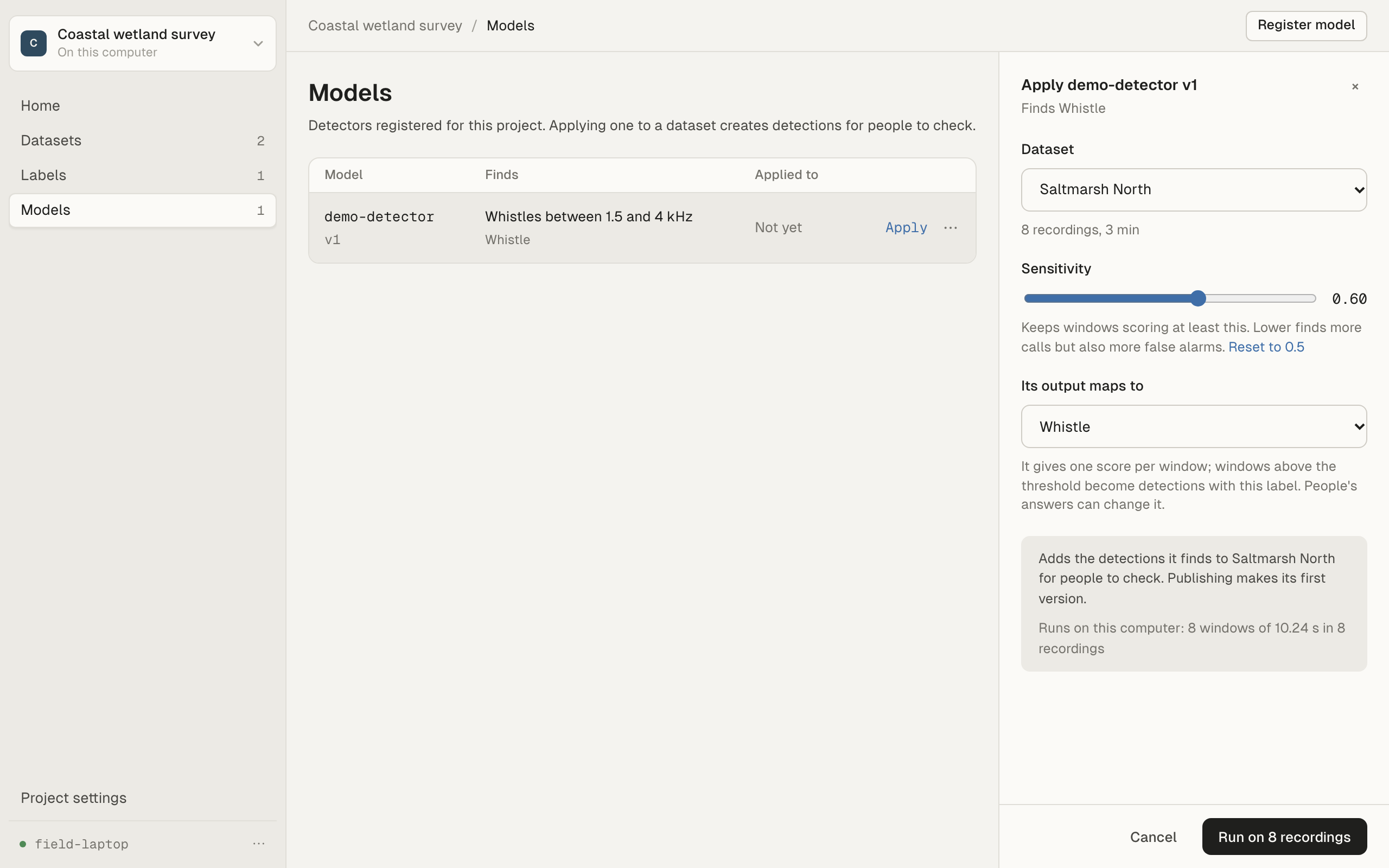
Check Dataset. Under it you see how many recordings it has and how many hours.
-
Set Sensitivity. Only windows scoring at least this become events. A lower value finds more calls, and also more windows people will answer Nothing. It starts at the model’s own value; click Reset to … to go back to it.
-
Under Its output maps to, pick the label the events get:
- Under “What the model finds”: the labels registered with the model.
- Under “The dataset’s labels”: any other label in this dataset.
- No label: events arrive without one.
A label that is not in this dataset yet is added to it when you run.
If the model has no labels registered, a manager can add them with Say what the model finds or with ⋯ > Edit on the Models page. If you are not a manager, pick a label under “The dataset’s labels”, or ask a manager to add the model’s labels.
-
Read the summary. It says what applying adds, that the latest version stays as it is, and what it will run, for example “Runs on this computer: 840 windows of 10.24 s in 12 recordings”. Recordings that are missing, or shorter than one window, are listed as skipped. Recordings that need a channel in the channel map are also left out, but the summary does not list them.
-
Click Run on N recordings.
While it runs
Section titled “While it runs”The sheet shows a progress bar: “Loading the model…”, then “Recording 3 of 12, 41 detections so far”, then “Adding the detections…”.
You can close the sheet and keep working. The run carries on, and the model’s row on the Models page shows Applying… N%. Click it to see the progress again.
To stop, open the sheet and click Stop. Nothing from a stopped run is added.
You can apply the same model to the same dataset only once at a time. You can run different models, or the same model on different datasets, side by side.
When it finishes
Section titled “When it finishes”A notice appears on whatever page you are on:
- “model finished: N detections to check.” Click Check to open the dataset’s Events tab.
- “model finished: No detections found.” Try a lower sensitivity.
- “model didn’t finish”, with the reason.
The new events are Not checked. Open the labeller and answer them in Events, one at a time.
In an organisation project, the events sync to the organisation like any others. The model files stay on this computer.
A dataset’s model runs
Section titled “A dataset’s model runs”The dataset’s Models tab lists every run under “Applied to this dataset”, newest first. The latest model run is marked Current; imported events are marked Import.
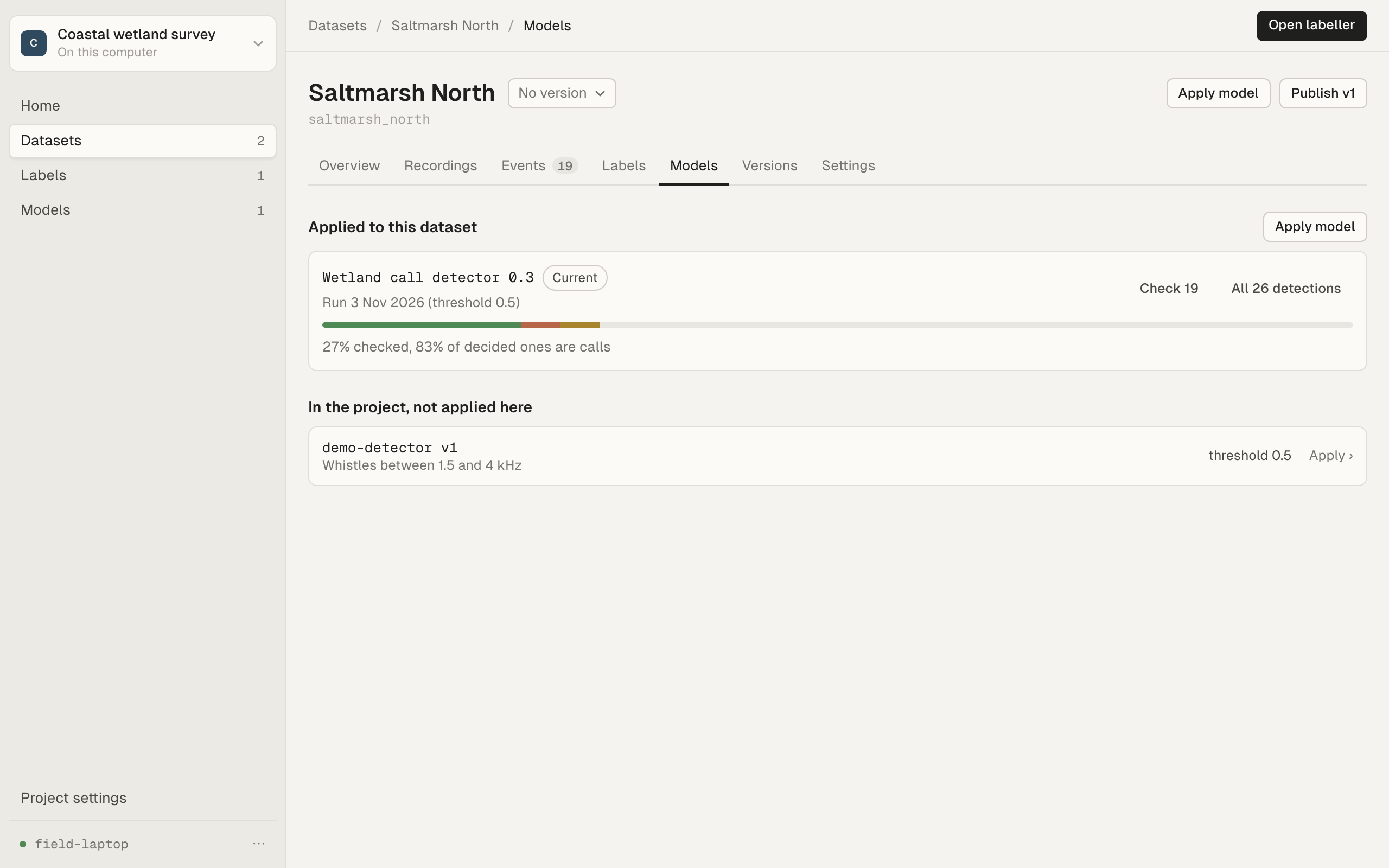
Each row shows:
- When it ran, with which model, and the threshold it used.
- Check N: opens the run’s Not checked events.
- All N detections: opens all of the run’s events.
- A bar of how its events have been answered, how many are checked, how many of the decided ones are calls, and how many boxes people refined by hand.
Where an event came from
Section titled “Where an event came from”In the labeller, click the i next to an event’s name (“About this event”). The window that opens shows:
- The run: the model, when it was applied, the window and step, the threshold, the label and how it changed (the model’s label, then each answer), which audio was scored, and how many recordings were scored.
- This window: where it is, its score, and how it ranks against the run’s other windows in this recording.
- Scores along the recording: a bar for each window the run kept, with the threshold as a line. Click a bar to go to that event.
The Audio line says whether the model scored the channel your channel map names, or a mix of the recording’s channels.
Troubleshooting
Section titled “Troubleshooting”The Run button is disabled. None of the dataset’s recordings can be scored here. Each one is missing (not on this computer and not on Google Drive), shorter than one window, or needs a channel in the channel map. The summary names the missing and short recordings but not the ones that need a channel. See Missing audio and finding it again and Channels.
“Couldn’t apply …” with “files aren’t on this computer”. The model was registered on another computer. See Its files are on this computer only.
“… recordings couldn’t be read and were skipped.” Those files could not be opened during the run. The other recordings were still scored. If none can be read, the run fails with “none of the recordings could be read”.
Too many events, or too few. Applying the model again does not replace an earlier run. Each run adds its own events, and the events of earlier runs stay in the dataset. Only the newest run is marked Current on the Models tab.
- Too many events: applying again at a higher sensitivity does not remove any. Choose the sensitivity before you run.
- Too few events: applying again at a lower sensitivity finds more windows. It also finds the windows the first run already found, so those windows turn up as events twice.