
Register a model
A model in Sift is a detector that finds candidate calls in recordings. You register it once per project. After that, anyone who may label can apply it to a dataset, and the events it finds wait there for people to answer.
Registering a model does not copy its files anywhere. The project keeps the model’s details and a fingerprint of each file. The files stay where they are on this computer.
Before you start
Section titled “Before you start”- You need to be a manager of the project. In a project on this computer only, you are always its owner, so you can. In an organisation project, see Projects, members and roles.
- The project must not be archived.
- You need the model’s two ONNX files on this computer:
- the backbone (an AST model that turns a window of audio into an embedding), and
- the head (which turns that embedding into one score between 0 and 1).
The backbone takes a mel spectrogram of shape [1, 1024, 128] and returns an embedding of shape [1, 768]. The head takes [1, 768] and returns one probability, [1, 1].
Register a model
Section titled “Register a model”- Open Models in the sidebar (or press ⌘ 3, Ctrl 3 on Windows and Linux).
- Click Register model.
- Fill in the form:
- Name: a short identifier, for example
kw-detector. Required. - Version: for example
v1.0. The same name and version can be registered only once in a project; a clash shows “Already registered”. - What it finds: a plain description, for example “Killer whale calls”.
- Labels its detections get: the label keys this model is meant to find. Type a key or a label name from the project’s label sets and press Enter. When you apply the model, you pick which one its events carry.
- Name: a short identifier, for example
- Next to Backbone (AST) ONNX, click Choose… and pick the backbone file. Do the same for Head ONNX.
- Check the numbers:
- Sensitivity: where applying starts, between 0 and 1. The default is 0.5. People can change it each time they apply the model.
- Window (s): how long each scored stretch of audio is. Leave it empty for 10.24 s.
- Step (s): how far apart windows start. Leave it empty to use the window length, so windows do not overlap.
- Click Register model.
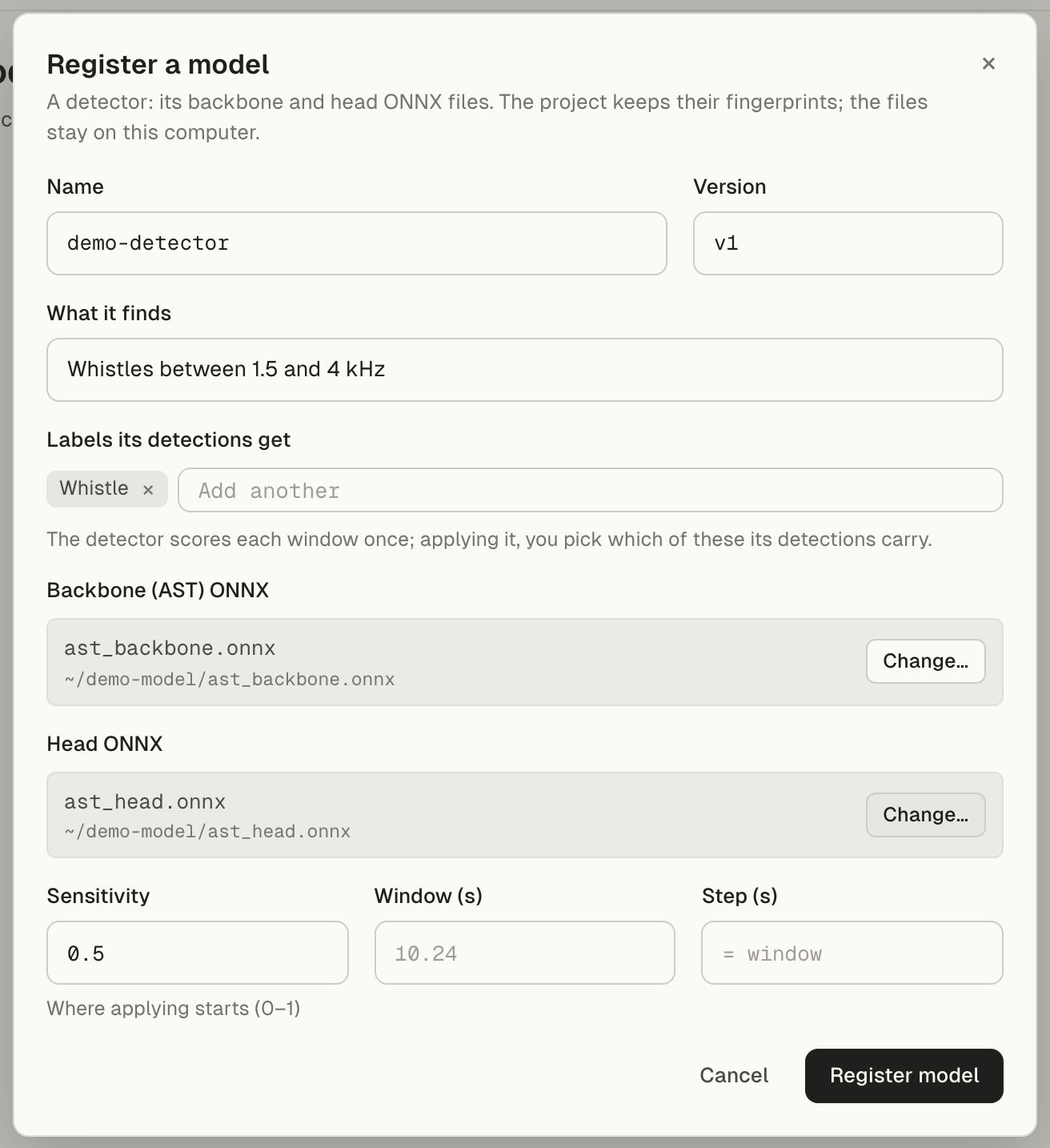
The button reads “Checking the files…” while Sift opens both files. If they exist and load, the model joins the project’s list and a notice says it was registered.
What you see on the Models page
Section titled “What you see on the Models page”Each registered model is one row:
- Model: its name and version.
- Finds: what it finds and the labels it carries.
- Applied to: the datasets it has been applied to, or “Not yet”.
- Added by: when it was registered, and in an organisation project, by whom.
Click Apply (or the row) to apply it to a dataset. The ⋯ menu has Edit and Remove from project.
Removing a model takes it out of this project’s list. Its files stay where they are, and the events it made stay in their datasets. You cannot remove a model while it is being applied.
Its files are on this computer only
Section titled “Its files are on this computer only”The project shares the model’s name, version, labels, sensitivity and file fingerprints. It never shares the files.
In an organisation project, this means:
- Everyone in the project sees the model on the Models page.
- Only a computer that has the files can apply it. On any other computer, the model’s row shows Locate files… instead of Apply.
- The events a model makes sync to the organisation like any other events. See Organisations, the hub and sync.
To use a model on another computer, copy both files to that computer. Then click Locate files… on the model’s row and choose the backbone file, then the head file. Anyone who can apply models can do this. Sift checks that they are the same files that were registered. Different files are refused with “… isn’t this model’s backbone (its contents differ from what was registered)”. Once they’re accepted, the row shows Apply again.
Managers can also choose the files in ⋯ > Edit.
If you have new weights, register them as a new model or a new version. They are a different model.
Copy a model from another project
Section titled “Copy a model from another project”In an organisation, a model registered in one of the organisation’s other projects can be copied into this one. If such a model exists, a line under the list names it, for example “kw-detector v1.0 is registered in Harbour 2025.”
- If its files are on this computer, click Copy it to this project ›. The copy is this project’s own registration of the same files.
- If they are not, the line says “Its files aren’t on this computer, so it can be copied from where they are.” Copy it on the computer that has the files.
Only managers see this line, and only in organisation projects. When several models could be copied, the line names the first and counts the others.
Troubleshooting
Section titled “Troubleshooting”“These files can’t be used” when you click Register model: one of the files is missing or is not an ONNX model Sift can load. The message under the title gives the reason.
“Not an .onnx file” under a file: the file you picked does not end in .onnx. Sift still tries to load it when you register.
“model file not found on this computer” or “… isn’t the file registered for … (its size changed)” when you apply: the files were moved, deleted or replaced since the model was registered on this computer.
- If they were moved, a manager can choose them again with ⋯ > Edit.
- If they were replaced or changed, Edit refuses them. Put the original files back, or register the new files as a new model or a new version.
“model didn’t finish” after “Loading the model…” when you apply: Sift only checks that each file is an ONNX model when you register. It does not check which file is the backbone and which is the head. If the two were swapped, or the same file was picked twice, the model fails to load when it is applied. Edit cannot fix this, because it refuses files that differ from the ones registered. Remove the model from the project and register it again with the right backbone and head. You can reuse the same name and version: a removed model no longer counts, so it is not refused as “Already registered”. You can also register them under a new version.
No Register model button: you are not a manager of this project, or the project is archived.