
Events: one event at a time
An event is any box on a recording. Events come from three places:
- The model’s detections. When you apply a model, each window it scores at or above the threshold becomes an event.
- Imports. Events brought in from somewhere else.
- Boxes people draw. A box you draw in Recording is an event too, and it counts as your answer.
The labeller has two views. Events shows one event at a time, so you can move through hundreds of them quickly. Recording shows a whole recording, so you can find what the model missed. This page is about Events.
How an event moves along
Section titled “How an event moves along”Every person answers for themselves. Nobody overwrites anyone else’s answer.
flowchart LR
  A["Model run"] --> N
  B["Import"] --> N
  C["Box someone drew"] --> N
  N["Not checked"] --> P["People answer:<br/>a label, Nothing or Unsure"]
  P -->|"answers agree"| OK["Confirmed as a label,<br/>Nothing or Unsure"]
  P -->|"answers differ"| D["Disputed"]
  D -->|"a manager settles it"| OK
  OK --> V["Included in the next<br/>published version"]
When people name different labels, or one says a label and another says Nothing, the event is disputed. A manager settles it. This is the default. A dataset’s Settings can let the latest answer count instead. See Disputes and settling them. A dataset can’t be published while events are disputed, unless you choose to leave them out. See Published versions and exports.
A disputed event’s box says Disputed on the spectrogram. Managers settle it right there in Events. A manager is a project manager or an organisation owner or admin. When answers differ, they see an Answers disagree panel above the Label choices, with one Keep button for each different answer and the names of the people who gave it. Choosing one is a ruling. Everyone’s answers stay in the event’s history. After that the panel says Settled as the kept answer, with Withdraw ruling to undo it.
A box made by adjusting someone else’s box disputes theirs. For that event, Events shows a Bounds disputed panel instead. Managers see Keep this box and Keep Lena’s (with the other person’s name). If the box is yours, you can choose Withdraw mine. See Settle a bounds dispute.
Start a session
Section titled “Start a session”- Open a dataset and choose Open labeller (or press L on the dataset’s page).
- On the start screen, the Events card sets up the session:
- Order: Highest confidence first, Lowest confidence first, Recording order, or Random order.
- Only what needs checking: show only events nobody has answered yet. Off shows every event.
- Whose: Every event, The model’s detections, or Boxes people drew.
- Skip events in Nothing-here recordings: leave out events in recordings everyone marked Nothing here. Recordings with mixed marks stay. See Noise, notes and recording marks.
- Choose Start with events, or press Enter.
These choices are remembered for this dataset on this computer. In an organisation project, a manager may have given you an assignment. It is listed under Assigned to you, and it can set the order and filter for you. See Assignments.
If the dataset has no events yet, the start screen skips straight to Recording. Apply a model (Apply a model and map its output) or draw boxes first.
Answer an event
Section titled “Answer an event”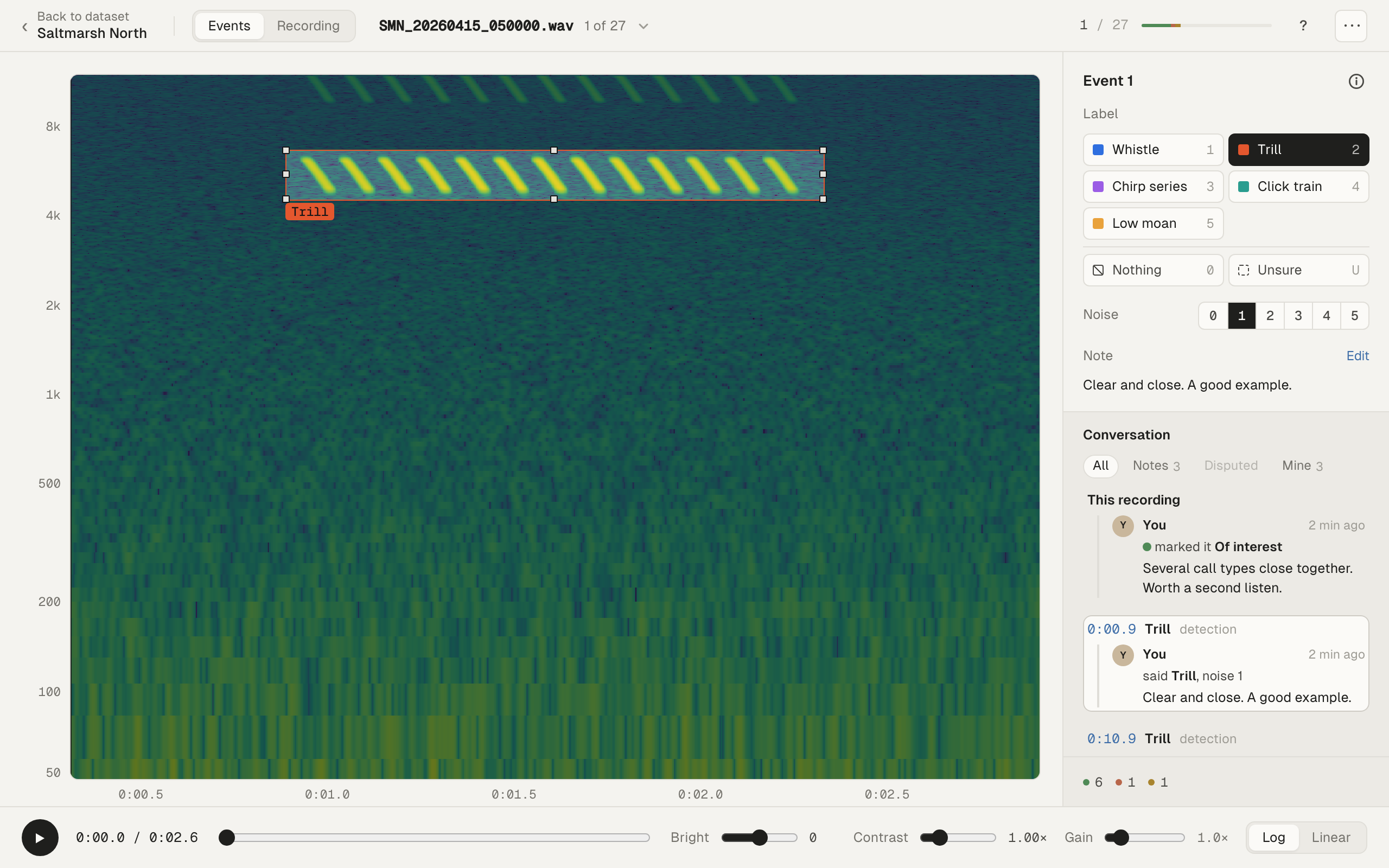
The spectrogram shows the event framed in its recording. The event plays when it opens (turn this off with Auto-play in the Event and view options menu, or press A). Press Space to play or pause.
On the right, Label offers:
| Choice | Key | Meaning |
|---|---|---|
| One of the dataset’s labels | 1 to 9 | It is this. |
| The event’s current label | Enter | Accept the label it came with. That label is marked as the suggestion. |
| Nothing | 0 | Nothing of interest there. |
| Unsure | U | You can’t tell. |
Your answer is saved and the event stays open, so you can rate its noise or add a note. Press → to move on. To go straight to the next event after each label, turn on Next event after labelling in the options menu (⋯). A short message under the spectrogram says what you answered, with an Undo button.
You can also rate how noisy the event is and leave a note. Both are optional and separate from your answer. See Noise, notes and recording marks.
If you can only view the dataset, the panel says View only and the answer buttons are turned off.
Move around
Section titled “Move around”- → or S: next event, without answering.
- ←: previous event.
- The strip of events under the spectrogram shows the events either side of this one, in the session’s order. Each is coloured by its answer, and ✎ marks one with a note. Click one to open it. The ‹ and › buttons page the strip by nine. Hide it with Strip of events in the options menu.
- The event picker in the top bar shows the recording’s name and where you are, for example “214 of 1,240”. Click it to search by recording name or label, filter by All, Unchecked, Unsure, Disputed or Mine, and jump to any event. Its This recording tab limits the session to the open recording.
- D or the Recording switch in the top bar opens the whole recording at this event.
Events keep their numbers as you go, so “Event 313” stays event 313 even after you answer it.
When there is nothing more to show, you see You’ve reached the end. Choose Start again from the top, or Choose what to label to go back to the start screen.
To finish, choose Done in the options menu (⋯). It lets go of the events you were holding and takes you back to the dataset. Esc only goes back a step, to where you opened the labeller from.
Press ⌘Z on a Mac, or Ctrl+Z elsewhere, to undo your last answer. Undo goes back through your own answers in this dataset, one at a time. If an event has changed since you answered it, Sift says it couldn’t undo it.
Who said what
Section titled “Who said what”Below your answer, the Conversation lists what people said about this recording: marks and their notes, notes on boxes, answers with a note, and answers on disputed events. Click an entry to go to its event. Plain answers on events nobody disagrees about are left out, so the list stays short.
If others disagree with you on this event, your answer is kept beside theirs and the event is disputed (unless the dataset’s Settings let the latest answer count). For every step of an event’s label, open its details with the i (below).
The event’s details
Section titled “The event’s details”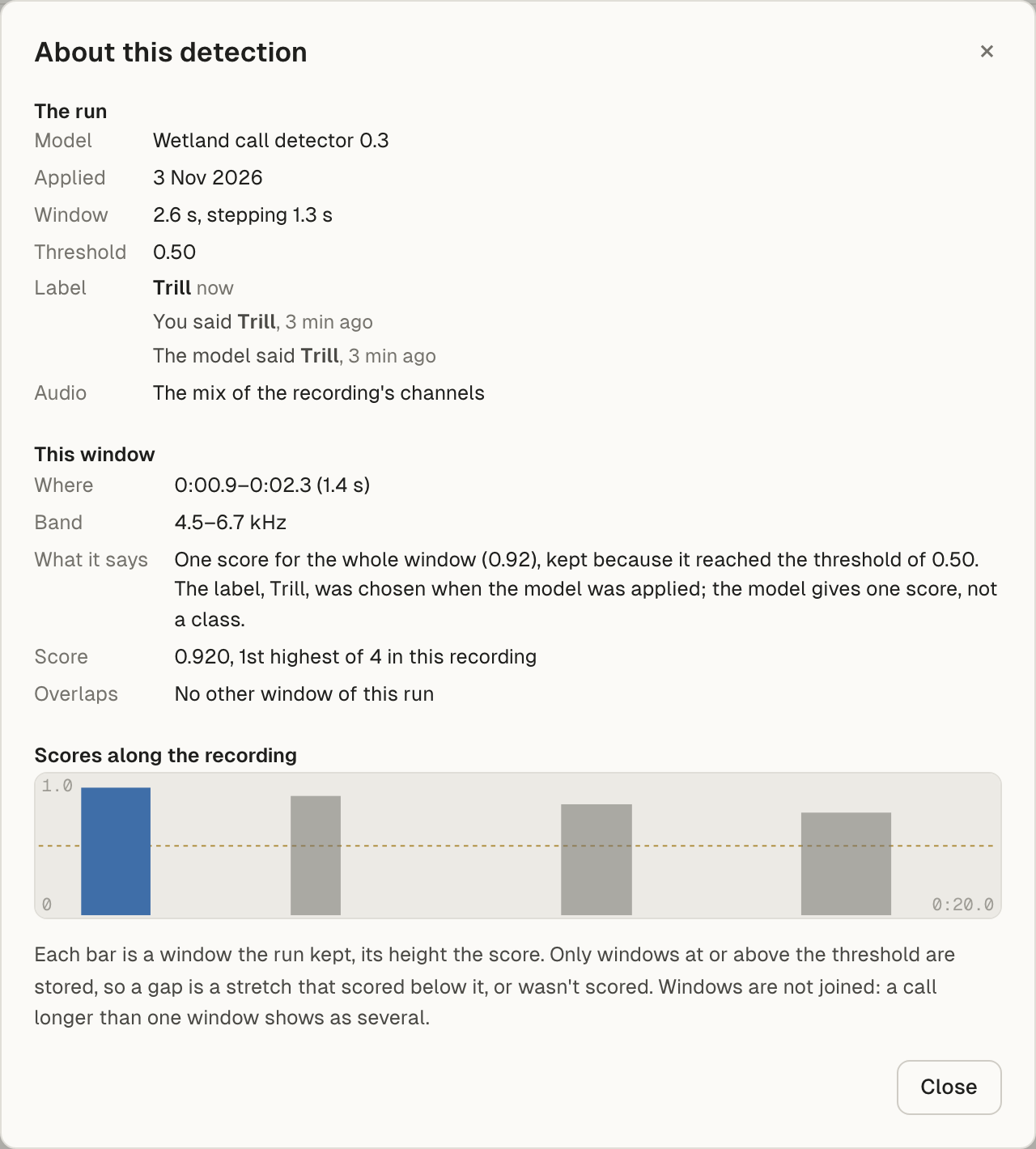
Click the i beside the event’s name (“Event 313”) to open About this detection. It shows:
- The run: the model, when it was applied, the window length and step, the threshold, and the label.
- Label: when the label has changed, every step. For example the model’s label, each person’s answer, and any ruling.
- This window: where it is, its frequency band, what the score means, and its rank, for example “2nd highest of 14 in this recording”.
- Scores along the recording: one bar for each window the run kept, with the threshold as a line. Click a bar to go to that event.
The model gives one score for a whole window, not a class. The label was chosen when the model was applied. Only windows at or above the threshold are stored, so a gap in the track is a stretch that scored below it or wasn’t scored. A call longer than one window shows as several events.
Adjust an event’s box
Section titled “Adjust an event’s box”You can drag the edges of the event’s box in Events. What happens depends on whose box it is. For anything but your own box, Sift asks first: “Make this your own box?” for a model’s detection, or “Make your own version of Lena’s box?” for someone else’s. Choose Continue or Cancel. Tick Don’t show this again to stop being asked on this computer.
- Your own box changes in place.
- A model’s detection becomes your own box. The detection is kept in the event’s history.
- Someone else’s box becomes your own box that disputes theirs. See Drawing boxes and adjusting bounds.
A large change means earlier answers no longer count until those people answer again.
Troubleshooting
Section titled “Troubleshooting”- “No events yet”: the dataset has no detections and no boxes. Apply a model, or choose Draw boxes in Recording.
- “This recording isn’t on this computer”: the audio file has moved or its drive isn’t connected. Skip to the next event, or find the file. See Missing audio and finding it again.
- “Nothing needs checking: showing every event.”: everything has an answer, so the session shows all events instead.
- “Not saved” at the bottom of the panel: the last change didn’t save. Check the error message, then answer again.