
The hub web app
Your organisation’s hub has a web app. Open your organisation’s address in a browser, for example https://sift.fathom.operationalecology.io, and sign in with the same email and password you use in the desktop app.
Use it to run the organisation: invite people, set roles, create projects and decide who sees them, and follow what is happening. Labelling does not happen here. Answering events needs the recordings, and recordings never leave people’s computers, so that work happens in the desktop app.
The web app only knows about organisation projects. Projects you keep on your own computer (“Use without an organisation”) never appear in it.
Who sees what
Section titled “Who sees what”Your organisation role decides what you can change:
- Owner and Admin manage people, every project and the organisation’s settings. Only an owner can make someone else an owner.
- User sees the organisation’s people, the projects open to them, their requests and the activity. Settings are read-only. The page says “Only admins can change organisation settings.”
- Hub admins run the hub itself. They also see All organisations › at the bottom of the sidebar. See The hub admin area.
The sidebar lists Overview, Projects, Requests, People, Activity and Settings. The organisation switcher at the top lists your other organisations and has + New organisation. See Set up an organisation.
Overview
Section titled “Overview”Counts of members, projects and datasets, and when a device last synced. Below that:
- Projects: the first few projects you can see, with their sync status.
- Recent activity: invitations, role changes and project changes.
- Online now: who is working in the desktop app right now, and on what.
- Needs attention: projects with disputed events, and invitations that expire within two days, with a Resend link.
Projects
Section titled “Projects”The list shows each project you can see, who it is open to, its datasets, its last sync and how many events are disputed.
Only owners and admins can create a project. New project asks for a name, an optional description and a Starting label set (copy one from another project, or Start empty). Then it asks who the members are. You become the project’s manager. Datasets and audio are added later, from the desktop app.
Open a project to see its tabs:
- Overview: totals as the members’ apps last reported them, members, who is here now, its datasets and recent activity, its label sets and models, and how its devices are syncing.
- Members: each member’s role (Manager, Labeller or Viewer), when they were last active and what they are working on. Managers can change roles, choose which datasets someone sees, and invite people. Under Who else gets in you choose whether everyone in the organisation gets in without an invitation, and what labellers can do. You see who a change affects before you save it.
- Datasets: each dataset’s recordings, marks, how many events are checked, its latest version and who can see it. Managers use Change access to narrow who sees a dataset. The ⋯ menu has Versions and devices…, the audio channels, and Move to another project. New dataset from Google Drive starts a Drive-backed dataset. See Google Drive datasets.
- Versions: every published version, who published it and its download. Downloads hold the labels and the index only. Audio is never stored in the hub.
- Activity: changes to the project, its members and its datasets.
A manager’s ⋯ menu has Edit name and description, Archive project… and Delete project…. Archiving makes the project read-only for everyone until it is restored. Nothing is deleted. Only an empty project can be deleted.
For what each role can do, see Projects, members and roles.
Requests
Section titled “Requests”The events and recordings colleagues asked you to look at, in four lists: For you, Open to anyone, Sent and Done. This page is read-only. Each open request says to continue in the desktop app. See Ask a colleague.
People
Section titled “People”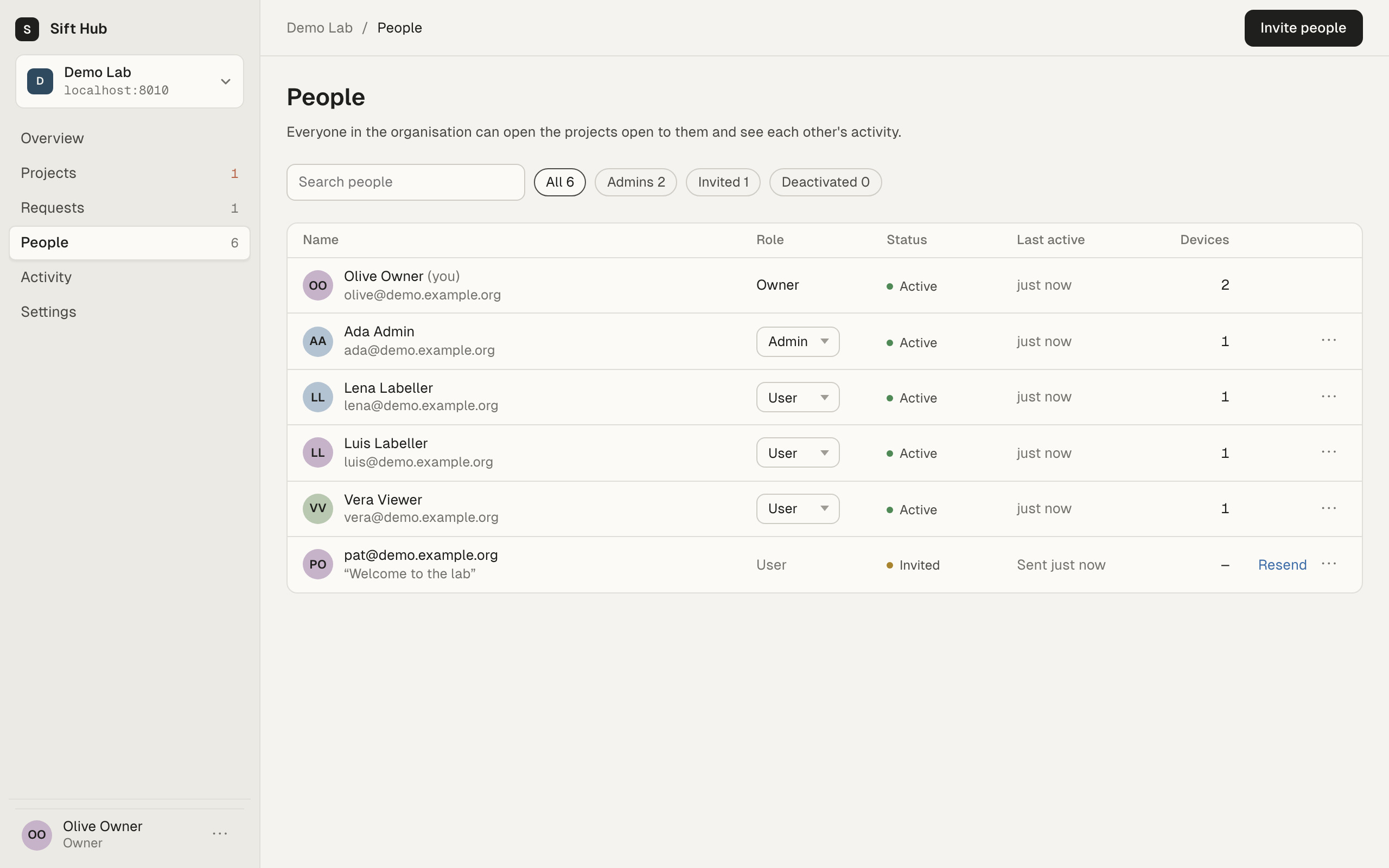
Everyone in the organisation, and everyone invited. Filter by All, Admins or Deactivated, or search by name or email. Owners and admins also see Invited.
- Role: owners and admins can change it in the table. The roles are Owner, Admin and User.
- Status: Active, Invited, Expired or Deactivated.
- Devices: how many devices have a live session for that person.
To invite people, choose Invite people. Paste or type email addresses, pick User or Admin, and add an optional personal note. You can send up to 50 at a time. Invitations expire after 7 days. Use Resend to send a new link (the old link stops working), or Revoke invitation from the ⋯ menu.
A person’s ⋯ menu has:
- Deactivate: they keep their membership and role but can’t use the organisation until you Reactivate them.
- Remove from organisation: they lose access and their project memberships end. Their past labels and activity stay. To let them back in, invite them again.
Activity
Section titled “Activity”Changes to people, projects and settings, and what people report from the desktop app. Filter by kind, person, project and period. Owners and admins can Export CSV of everything that matches, up to 10,000 rows.
Organisation settings
Section titled “Organisation settings”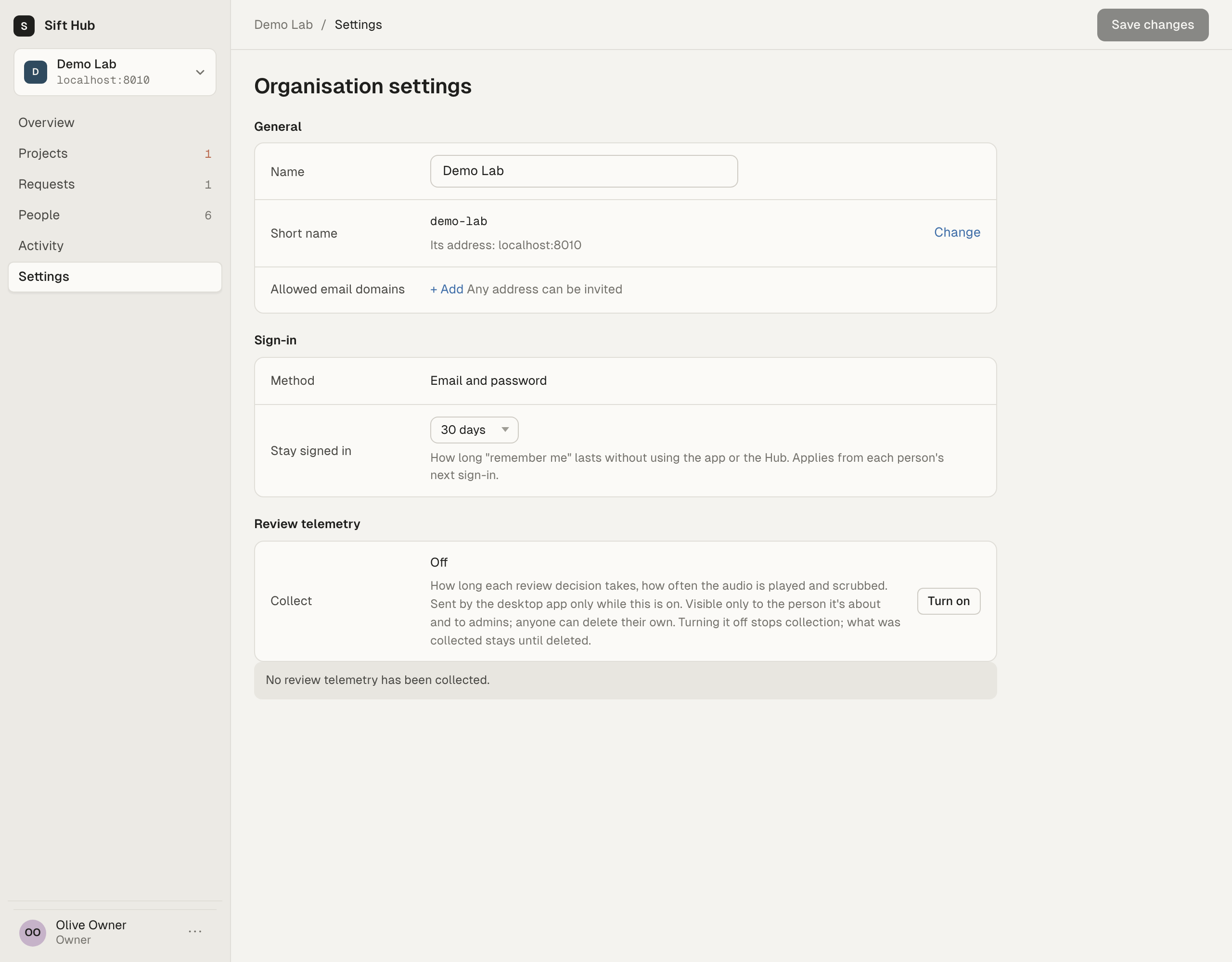
Owners and admins change General and Sign-in, then choose Save changes.
General
- Name: the organisation’s display name.
- Short name: the slug in the organisation’s address. Changing it changes the address. The old address stops working, and if you are on it you sign in again at the new one.
- Allowed email domains: when you list domains, only addresses at those domains can be invited or accept an invitation, including invitations already sent. With none listed, any address can be invited.
Sign-in
- Method: Email and password. Each person sets their own password.
- Stay signed in: how long “remember me” lasts without using the app or the hub, 1, 7, 14, 30, 90, 180 or 365 days. It applies from each person’s next sign-in.
Review telemetry
Owners and admins choose Turn on or Turn off. It applies at once, without Save changes.
When it is on, the desktop app sends how long each answer takes and how often the audio is played and scrubbed. Only the person it is about and the admins can see it. Anyone can delete their own, and admins can delete anyone’s. Turning it off stops collection. What was collected stays until someone deletes it. Deleting it never touches labels or answers.
Your account
Section titled “Your account”The ⋯ button next to your name at the bottom of the sidebar opens a menu with Account settings, light or dark mode, Sign out and Sign out everywhere. Account settings has one choice: Email me about labelling requests. Security notices and changes to your memberships are always emailed.
Get the app
Section titled “Get the app”The hub’s /download page offers the desktop app’s newest installer for your computer, and lists the others with their size and SHA-256 checksum. It works without signing in, so you can send the link to new people. See Releases and updates.
The hub admin area
Section titled “The hub admin area”Hub admins run the whole hub, which can hold several organisations. All organisations › in the sidebar opens it.
- Organisations: every organisation on the hub, with its members, creation date and status. New organisation asks for a name, a short name and the owner’s email. If that address already has an account, it becomes the owner at once. Otherwise the hub emails an owner invitation. Disable stops an organisation from being used, and Enable turns it back on.
- Hub settings: the hub’s name and API version, the hub admins, whether anyone can set up a new organisation, Backups, Device pruning, a link to the desktop app’s download page, and the recent hub events.
- Backups says when the last nightly backup finished (“Last backup 5 hours ago”), or warns: “No backup has reported to this hub”, “No backup has finished yet”, “The last backup failed…”, or “The last backup was 3 days ago: backups may have stopped”. Backups are set up on the server. See Deploy and run the hub.
- Oldest restore point is the time of the oldest retained backup: the earliest point the restore script can bring the hub back to. It reads “Not reported yet (after the next nightly backup)” until a nightly backup has reported it.
- Device pruning is “Off: devices keep every change (the default)”. Turn on lets every device in every organisation on the hub drop old changes that every retained backup holds. See Device pruning before you turn it on.
Two things can’t be changed in the browser. More hub admins are added with the hub’s command line (hub create-admin). Whether anyone can set up an organisation comes from the server setting HUB_REGISTRATION_OPEN. See Deploy and run the hub.