
Labels and label sets
Labels are the answers people can give an event besides “Nothing” and “Unsure”. A project keeps its labels in label sets. Each dataset gets its own copy of one set, which it can change for itself.
Display name and key
Section titled “Display name and key”Every label has two names:
- Name: what people see. Any text, for example “Splash call”.
- Key: what data carries, for example
splash_call. Exports, models and other projects use the key. It is lowercase letters, digits and_.
Sift makes the key from the name when you add a label. The key appears in small type under the name.
Renaming a label never changes its key, so events and exports are not affected. You can edit the key freely while nothing uses it. Once events, a published version or a model use it, the key is locked. See Change a key.
The Labels page
Section titled “The Labels page”Open Labels in the sidebar, or press ⌘ 2 (Ctrl 2 on Windows and Linux).
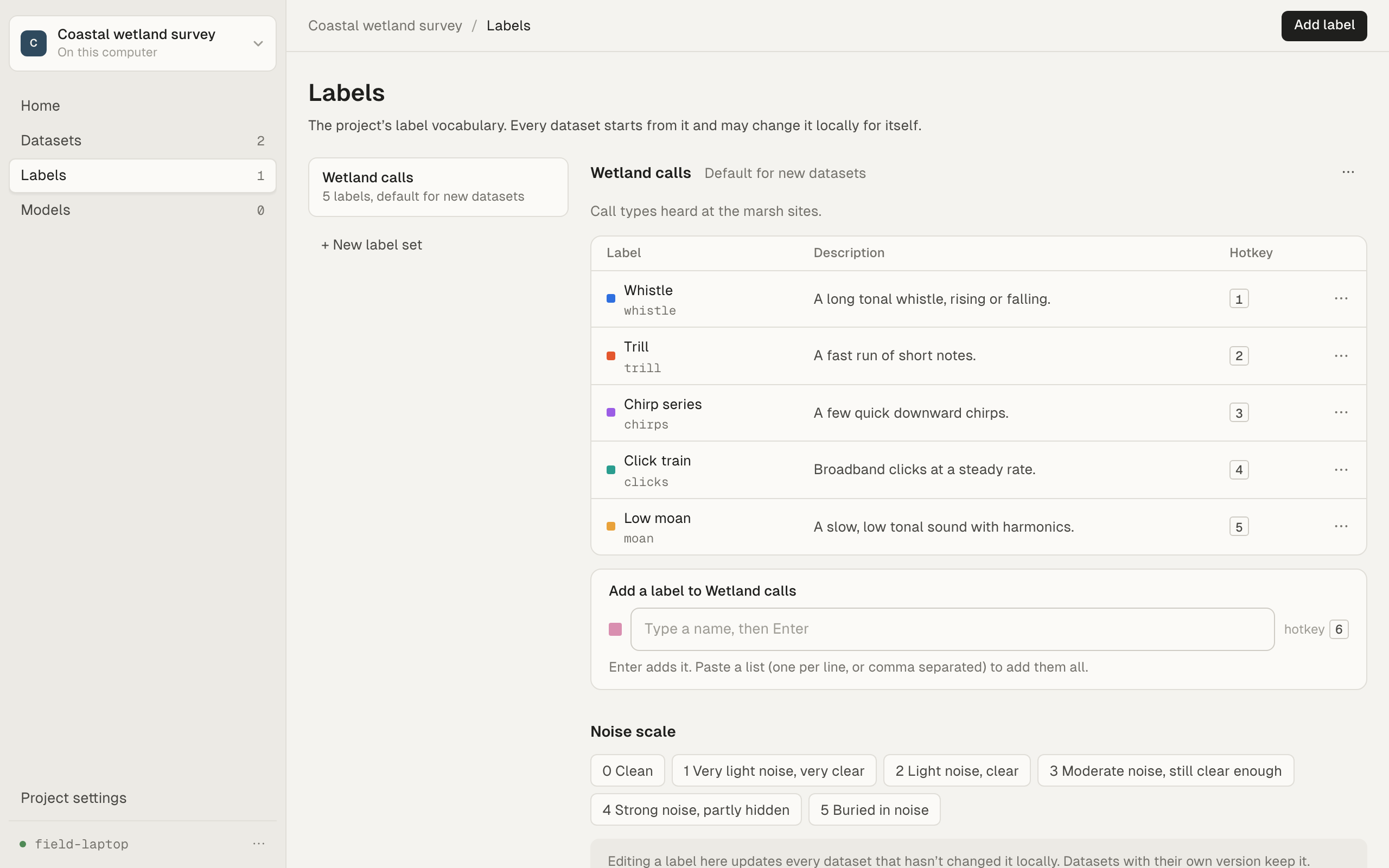
The list on the left shows the project’s sets. One is the default for new datasets. The table shows the selected set’s labels: Label (name and key), Description, Hotkey, and Datasets using, which also counts datasets that hid or changed the label.
Only the project’s managers change label sets. In a project on this computer only, you are its owner, so you can. An archived project’s sets are read only.
Make a label set
Section titled “Make a label set”- Click + New label set under the list. In a project with no label sets yet, click New label set in the top bar.
- Give it a Name.
- Under Start from, choose No labels, a dataset’s labels, or a copy of another set.
- Type a label’s name and press Enter. Repeat, or paste a list (one per line, or separated by commas) to add them all.
- Click Create label set.
Change a set
Section titled “Change a set”- Add label in the top bar focuses the input under the table.
- Each label’s ⋯ menu has Edit, Move up, Move down and Remove from set. You can also drag rows to reorder them.
- The set’s ⋯ menu has Name and description, Make default for new datasets, Duplicate and Delete label set.
Editing a label in a set updates every dataset that uses the set, except where the dataset changed that label itself. The note under the table says “Editing a label here updates every dataset that hasn’t changed it locally” and names the datasets with local changes. See How a set’s changes reach a dataset.
Deleting a set does not relabel anything. Datasets that copied it keep the labels they have. The set is kept as an archived label set: managers see “N archived label sets” at the top of the Labels page, each with Restore.
A dataset’s labels
Section titled “A dataset’s labels”When you add a dataset, you pick the set it starts from. The dataset gets a copy of the set’s labels. Open the dataset’s Labels tab to see them.
flowchart LR
  S["Project label set"] -- "copied when the dataset starts" --> C["Dataset's copy of the labels"]
  C -- "add, rename, hide a label" --> L["Dataset's own changes"]
  S -- "a manager edits the set" --> U{"Did the dataset change<br/>that field of the label?"}
  U -- "No" --> C2["The dataset gets the edit"]
  U -- "Yes" --> K["The dataset keeps its own"]
The tab says which set the labels came from: “Inherits Wetland calls from the project. Changes here only affect Saltmarsh North.” The Source column says, for each label:
- Project: as the set has it.
- Changed here: this dataset changed it.
- Added here: this dataset added it.
- This dataset: the dataset’s own labels, when it did not start from a set.
The Shown switch hides a label from this dataset. Events that already carry it keep it.
Anyone who can label may add a label to a dataset. Changing, hiding and resetting labels is for the project’s managers.
How a set’s changes reach a dataset
Section titled “How a set’s changes reach a dataset”A dataset follows its set field by field: a label’s name, colour, hotkey, description, key, and whether it is shown.
- Your own edit beats the set. If the dataset changed a field of a label, it keeps its own value, even when the set changes that field later. The set’s changes to the label’s other fields still come in. For example, a dataset that renamed “Whistle” to “Whistle (faint)” keeps that name when a manager changes the label’s colour in the set, and takes the new colour.
- A label the set adds is added to the dataset.
- A label the set removes is hidden in the dataset, unless the dataset showed or hid it itself. Events that carry it keep it.
- A key the set changes changes in the dataset too, and the dataset’s events follow.
- A reorder in the set doesn’t change the dataset’s order.
In an organisation, the set’s changes reach each dataset when a manager’s app syncs. A manager’s app brings them into every dataset of the project it holds, and the result syncs to everyone. Labellers see a set change once a manager’s app has been online since.
Reset to project
Section titled “Reset to project”Reset to project makes the dataset’s labels the set’s labels as they are now, including fields the dataset changed. It asks first: Use followed by the set’s name, with the set’s labels, and lists what it will replace:
- “N labels of this dataset have changes of their own”: those labels “take the set’s name, colour, key and description: this dataset’s changes to them are replaced”.
- “N labels of this dataset aren’t in the set”: those labels “leave the dataset’s labels. Events that carry them keep them.”
After a reset, the dataset follows the set again: later changes to the set come in, until someone edits the dataset’s labels again.
When the set has changed
Section titled “When the set has changed”When a manager saves a change to a set, the datasets that use it get the change, and it syncs to everyone. Most of the time you never need to do anything.
Sometimes a dataset hasn’t caught up yet, for example because no manager’s app has synced it since. Its Labels tab then shows “Wetland calls has changed in the project” and “This dataset still has the labels as they were when they were copied.”
A manager can click Bring in the changes. This brings in the set’s changes by the same rule: the dataset’s own edits still win. In an organisation, Sift syncs the dataset first. If it can’t bring the dataset up to date now, it says “The set’s changes come in when this dataset next syncs”. Labellers see “A manager of the project can bring the changes in.”
To take the set exactly as it is, overwriting the dataset’s own changes, use Reset to project instead.
A dataset with no set has Start from a project set instead, which can also make a new set.
Two labels with the same key
Section titled “Two labels with the same key”Two managers working offline can each add a label with the same key, to a set or to a dataset. When their work meets, the Labels page (for a set) or the dataset’s Labels tab shows “Two labels share the key” followed by the key, with Merge these labels. Merging keeps one label. Datasets that copied either follow it, and the other label’s events and answers read as the one kept. Until someone merges them, a new dataset or a reset takes the one Sift keeps when merging.
Managers may also see:
- “N label sets are called” followed by a name: two managers made a set of that name on different computers. Rename one, or archive the one you don’t need.
- “One model is registered twice”, with Archive the copy. The copy’s runs are kept; new runs use the one kept.
- N archived label sets (deleted sets), each with Restore.
Only the project’s managers see these and can act on them.
Change a key
Section titled “Change a key”Only the project’s managers change a key that is in use.
- Click Edit on the label (on the Labels page, or the dataset’s Labels tab).
- The Key field says “Locked” and what uses it. Click Change key….
- Type the New key and confirm.
What happens:
- Events with this label export with the new key from now on, on everyone’s computer once synced.
- Published versions keep the old key. Versions never change. Exports already made, and models trained on them, still say the old key.
- Changed in a set, the key also changes in the datasets on this computer that copied it, and in the project’s models that output it.
- Changed in a dataset, the project’s set keeps its own key.
Copy a set from another project
Section titled “Copy a set from another project”In an organisation with other projects, Copy from another project appears on the Labels page.
- Click Copy from another project.
- Pick the Project and the Label set.
- Check the Name here, then click Copy label set.
The copy belongs to this project. Changing it does not change the original, or the other way round.
Projects on this computer only do not have this button.