
Drawing boxes and adjusting bounds
In Recording, you draw a box around each call: a stretch of time and a band of frequency. A box you draw is an event like any other, and it counts as your answer for that event. Everything saves as you go.
Draw a box
Section titled “Draw a box”- Choose the label new boxes should get. With nothing selected, the panel shows New boxes get with the dataset’s labels. Click one, or press its number, 1 to 9.
- Drag across the spectrogram around the call.
- The new box is selected, and the panel shows it.
If the dataset has no labels yet, boxes are saved without one. Add labels on the dataset’s Labels tab. See Labels and label sets.
If dragging plays the audio instead, open the Recording and view options menu (⋯) and choose Draws a box under A click on the spectrogram.
The selected box
Section titled “The selected box”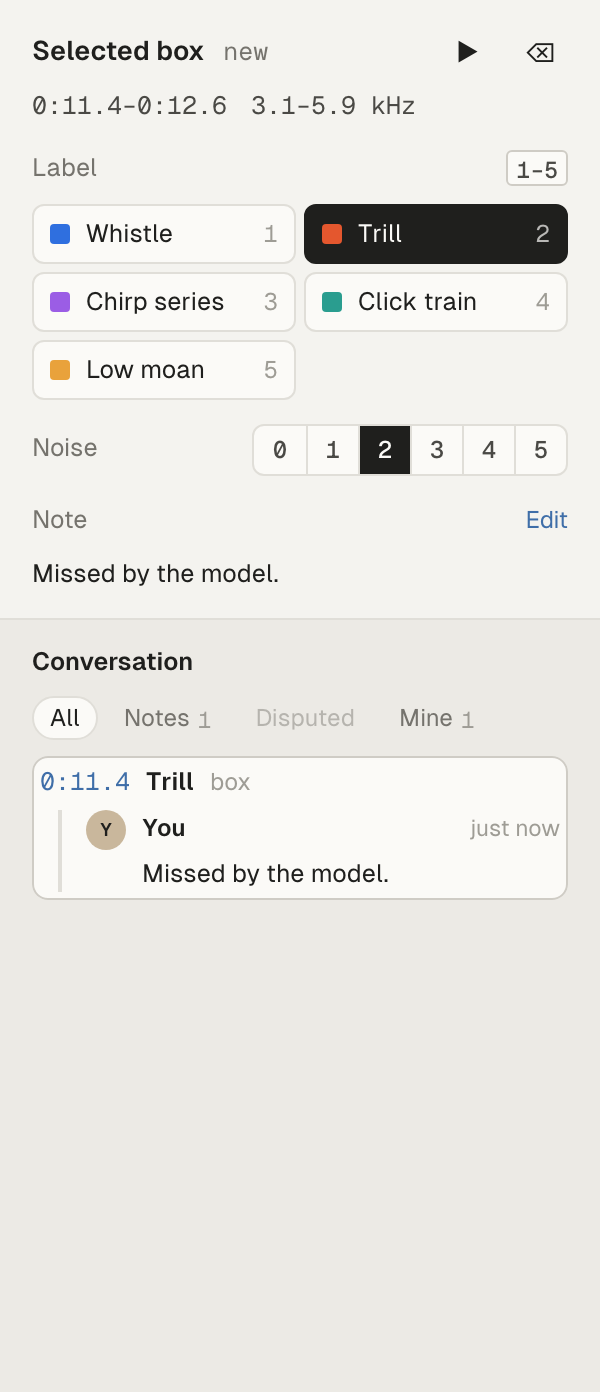
Click a box (or its label chip) to select it and hear only its band. The panel shows:
- Selected box, with “new” or “tightens det N”.
- Its time range and frequency band.
- ▶ Play only this box’s band (P).
- ⌫ Delete box (Delete or Backspace).
- Label: one chip per label. Click one, or press 1 to 9, to relabel the box.
- Noise and Note. See Noise, notes and recording marks.
With a box selected:
- Drag it to move it, or drag its handles to resize it.
- [ and ] select the previous and next box.
- Esc deselects it. Press Esc again to leave.
Picking a label with a box selected also makes it the label for your next new boxes.
Delete a box
Section titled “Delete a box”Select the box and press Delete or Backspace, or click ⌫ Delete box.
If other people drew their own boxes on top of it (see Adjust someone else’s box), Sift asks first: “Delete this box?”, naming who, and “Theirs stay, on their own, still marked as a dispute.” Choose Delete or Cancel. Deleting your box never deletes theirs.
Press ⌘Z on a Mac, or Ctrl+Z elsewhere, to undo your last box change on this recording: drawing, moving, resizing, relabelling, rating, a note, or deleting. If someone has worked on that box since, the box stays as it is and Sift tells you.
Tighten a detection
Section titled “Tighten a detection”A model’s detection covers a whole fixed window and the full frequency range. To say where the call really is, drag over the detection to draw a tighter box inside it. The new box’s chip says which detection it tightens, for example “det 3”. Drawing over a detection also counts as your answer for it.
In Events, you can do the same by dragging the edges of the event’s box. Sift first asks “Make this your own box?”. Choose Continue or Cancel, or tick Don’t show this again. The model’s detection becomes your own box, and the detection is kept in the event’s history.
Adjust someone else’s box
Section titled “Adjust someone else’s box”When you drag the edges of another person’s box, Sift first asks “Make your own version of Lena’s box?”. Choose Continue or Cancel. Tick Don’t show this again to stop being asked on this computer. If you continue, Sift makes a box of your own with the new bounds and leaves theirs unchanged. The two boxes stand side by side, and the event is bounds disputed until one is kept.
flowchart LR
  L["Lena's box"] --> Y["You drag its edges"]
  Y --> O["Your own box, beside hers,<br/>marked Bounds disputed"]
  O --> K["A manager keeps one"]
  O --> W["Or you withdraw yours"]
What you see:
- In Recording, your new box is selected, beside Lena’s. In Events, the event opens as your box.
- In Events, the panel shows Bounds disputed and explains whose box this disputes.
- The conversation shows “adjusted Lena’s box: bounds disputed”.
How it gets settled:
- A manager sees Keep this box and Keep Lena’s in Events.
- You, as the one who made the new box, can choose Withdraw mine. Your box is deleted and Lena’s stands.
See Disputes and settling them.
Large changes
Section titled “Large changes”Changing your own box in place keeps the answers people gave on it, unless the change is large. A change is large when the old and new box overlap by less than half: Sift compares what they share in time and in frequency with what they cover together. After a large change, the answers given before no longer count until those people answer again. In Recording, a message says so, with an Undo button. In Events, a short message says “A large change: earlier answers no longer count”, also with Undo.
Troubleshooting
Section titled “Troubleshooting”- A box I drew disappeared after Undo: undo removes the last box change on this recording, including drawing it.
- “Couldn’t undo: someone has worked on that box since, so it stays.”: another person changed the box after you. Edit it again instead.
- “Couldn’t adjust the box”: the change didn’t save. The box goes back to where it was. Try again.