
Install Sift
Sift is a desktop app for macOS, Windows and Linux. You listen to recordings, label them and publish what you have checked, all in the app. This page gets it onto your computer and helps you choose how to start.
Before you start
Section titled “Before you start”Three things are true however you use Sift:
- Your audio is never uploaded. Sift reads recordings where they already are, on your drives or network shares. It records where each recording lives on your computer, and that list stays on your computer too.
- Labelling works offline. Every answer, box and note is saved on your computer first. In an organisation, your changes wait and sync when the hub can be reached again.
- The hub only carries labels and project setup. If your organisation runs a hub, it passes your labels, boxes and notes to your colleagues. It never receives audio.
Get the installer
Section titled “Get the installer”There is no public download of Sift for now. You get the installer from your organisation:
- From your hub. If your organisation runs a Sift hub, open your hub’s address followed by
/downloadin a browser. The page offers the installer for your computer first. Below it, it lists every installer, with its size and SHA-256 checksum. - From your administrator. If your hub’s download page says downloads aren’t set up, or you don’t have a hub, ask your organisation’s administrator for the installer.
Then install it:
- macOS: open the
.dmgand drag Sift to Applications. - Windows: run the installer. If Windows shows “Windows protected your PC”, choose More info, then Run anyway. The Windows installer isn’t code-signed yet.
- Linux: make the AppImage executable (
chmod +x) and run it. The AppImage updates itself. The.deband.rpmpackages install system-wide.
To check a download, run shasum -a 256 <file> (macOS, Linux) or Get-FileHash <file> (Windows) and compare the result with the checksum on the download page, or the one your administrator gave you.
Choose how to start
Section titled “Choose how to start”The first time you open Sift, it asks you to sign in. You have two ways in.
flowchart TD
  install["Install the desktop app"] --> choice{"How do you start?"}
  choice -->|"Sign in"| signin["Hub address, email and password"]
  signin --> org["Organisation projects, synced through the hub"]
  choice -->|"Use without an organisation"| local["Personal projects, on this computer only and not backed up"]
  local -.->|"Share to the organisation later"| org
Sign in to your organisation
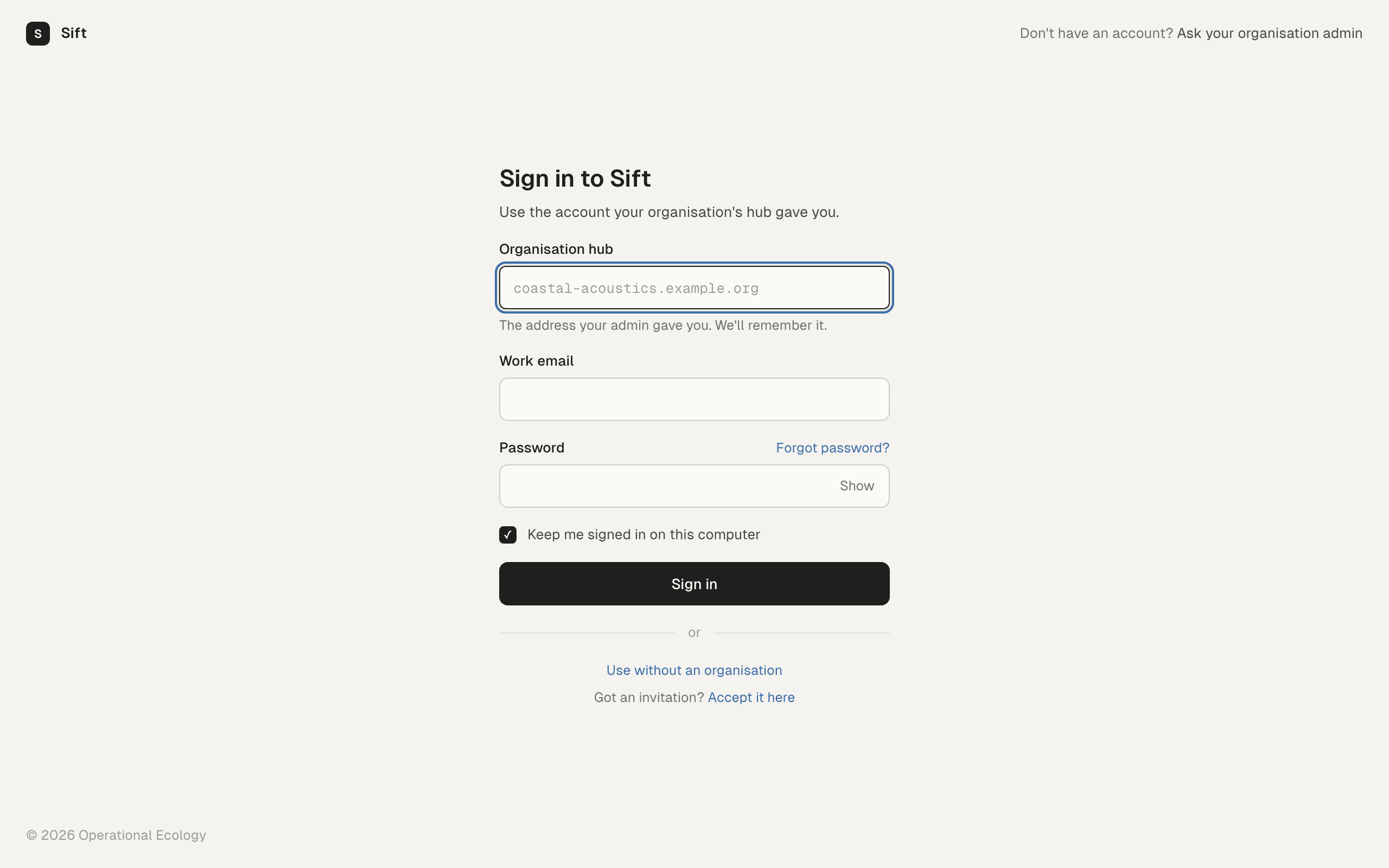
Section titled “Sign in to your organisation”Use this if your organisation gave you an account.
- In Organisation hub, type the address your admin gave you. Sift checks it when you leave the field and shows Hub reachable at the bottom of the screen if it answers.
- In Work email, type the email address of your account.
- Type your Password.
- Leave Keep me signed in on this computer ticked if you don’t want to sign in each time you open the app.
- Click Sign in.
If you belong to more than one organisation, Sift asks you to choose one. You can switch later from the account menu at the bottom of the sidebar: Switch organisation.
Sift remembers the hub and email. The next time, it says “Welcome back” and asks only for your password.
Accept an invitation
Section titled “Accept an invitation”If you were invited by email and don’t have an account yet, click Accept it here under “Got an invitation?”. Paste the invitation link or code, and the hub address if Sift asks for it. Then type your full name and choose a password. If an account already exists for the invited address, Sift asks you to sign in instead, and accepts the invitation as that account.
Use without an organisation
Section titled “Use without an organisation”Click Use without an organisation. You don’t need a hub or an account.
You then work in personal projects. A personal project lives on this computer only. Nobody else sees it, and it is not backed up, so keep your own copy of its folder if it matters.
To join an organisation later, open the account menu at the bottom of the sidebar and choose Sign in to an organisation. A personal project can be shared to an organisation later, which moves its datasets, label sets and models into it. Only the organisation’s owners and admins can share a project into it.
Keep Sift up to date
Section titled “Keep Sift up to date”When updates are set up for your copy of Sift, the app checks for a new version when it starts. You can also check by hand: open the account menu and choose Check for updates….
A new version downloads in the background while you keep working. When it is ready, a small card says Restart to update. Sift never restarts by itself. Your work is saved, and syncing picks up again after the restart.
Troubleshooting
Section titled “Troubleshooting”“Hub unreachable” or “No organisation hub answered at that address.” Check the address with your admin. You can type it with or without https://. If you are offline, choose Use without an organisation for now, or try again when you are connected.
“N tries left before sign-in is paused.” Your password was wrong. After too many wrong tries, sign-in is paused for a while. Use Forgot password? if you can’t remember it.
“Secure storage isn’t available on this computer, so you’ll need to sign in each time you open the app.” Sift keeps your session in your system’s keychain. When there is no keychain it can’t keep you signed in, so it asks for your password each time.
“Downloads aren’t set up for this Hub.” Your organisation’s hub has no download address. Ask your admin where to get the installer.
“No release has been published yet.” The download page works, but no version of the app has been published to it yet.
- Create your first project.
- If you were invited to an organisation, see Join an organisation.